


Ethan’s Admin Favicon Plugin
Part of my Free WordPress Plugins and Themes section.
v1.1.0
The WordPress admin dashboard doesn’t have a favicon. It never has. Log into three or four sites in the same browser session and every tab shows the same generic default image, which means you’re reading tab titles instead of glancing at icons, which is exactly the thing favicons exist to save you from in the first place. Frustrating!!
This plugin, Ethan’s Admin Favicon, fixes that, and gives you an actual dynamic tool to make your admin tab look different from your public site’s tab: a built-in editor for producing a distinct greyscale or recolored variant of your existing favicon, without leaving your browser.
Three ways to set it
- Paste a URL: already have an icon hosted somewhere? Drop the direct link in and you’re done. Works great for .ico files especially.
- Select from your media library: pick any image you’ve already uploaded and use it as your admin favicon exactly as-is, no editing required. Easy-peasy.
- Transform your existing favicon: this is where the real functionality lives. Choose the same favicon you’re already using on your public site, then open the built-in editor to generate a variant of it.
The editor
Once you’ve selected an image to work with, sliders for hue, saturation, brightness, and contrast let you reshape it in real time, previewed on a canvas right there on the settings page. The sliders are sensitive so you get the full range of colors and shades.
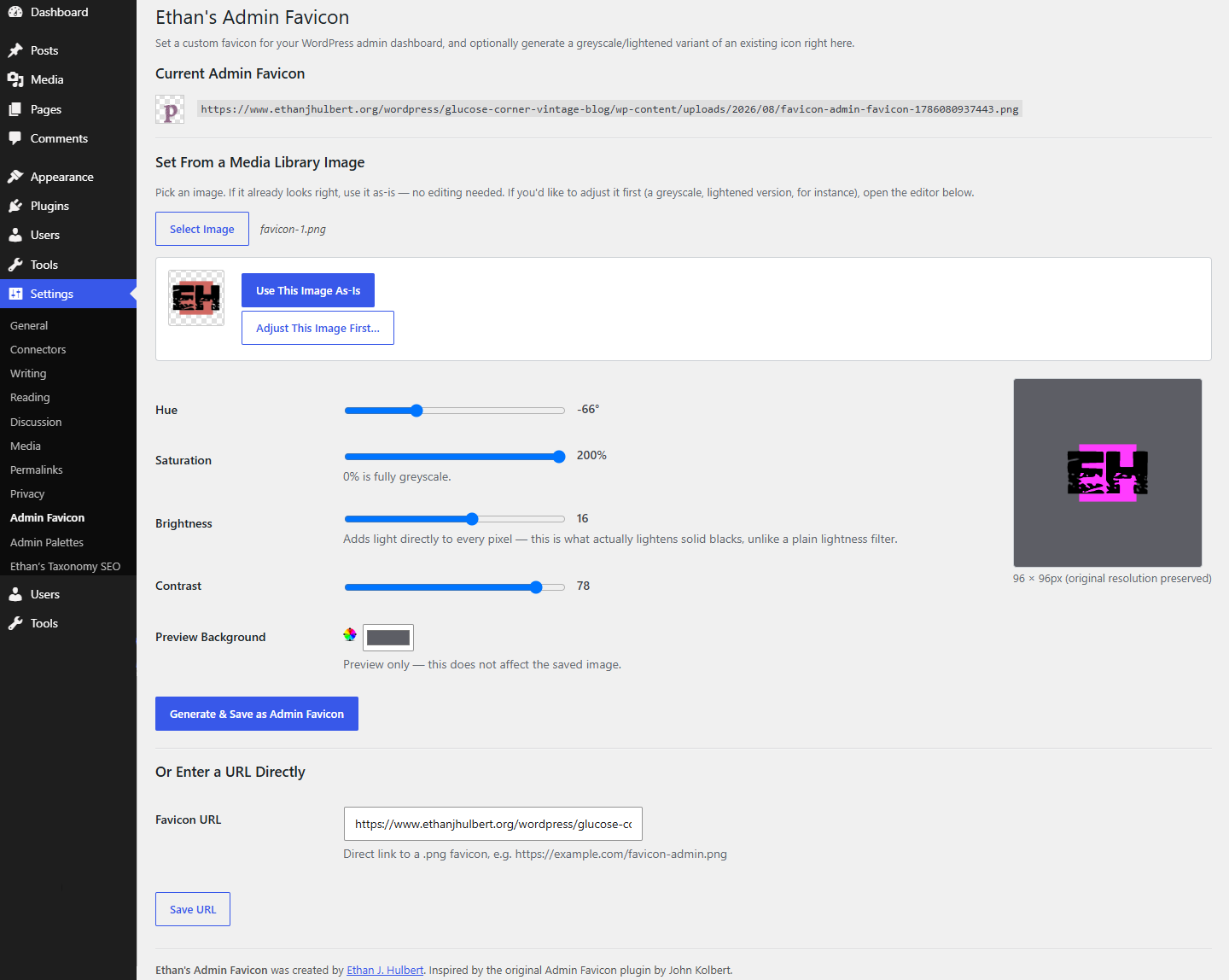
It puts your customizable favicon against a full-spectrum background color picker on a layer behind it, so you can check how the icon reads against light, dark, or any color your browser tabs may be. Whether your browser is default or skinned pink, you can test the contrast against it here with the eyedropper color picker (browser dependent).
Push saturation down and brightness up and you get the classic muted, lightened admin variant of a public favicon; shift the hue instead and you get an entirely different color without touching lightness at all. Personally, I like for my admin favicon to be greyscale and slightly lighter than the public favicon, so at a glance I can tell it’s the same site, but the back end rather than the front end.
When you generate a variant, it’s saved as a brand new image. Your original favicon is left completely untouched in your media library, and the new file gets its own timestamped filename so your browser doesn’t stubbornly keep showing you the old icon from cache.
Output is always PNG, so transparency comes through cleanly, and the plugin never resizes what you give it–so if you’ve uploaded a 2x version for retina displays, the generated variant stays 2x.
Where to find it
- Settings → Admin Favicon. Every option lives on one screen: the URL field, the media library picker, and the editor.
No configuration required to get started. Pick an image, decide whether you want to edit it or not, and you’re set.
Good to know
Nothing is written anywhere until you actively save it. Adjusting sliders is just a live preview until you click generate. If you deactivate the plugin, your admin dashboard simply goes back to having no favicon; nothing about your site’s public-facing favicon is ever touched, since this only ever writes to a separate setting and a separate media file.
You should try to limit what you put in here to normal favicon-sized images. This doesn’t do any resizing so if you try to shove in a massive graphic file of some kind, I don’t really know what will happen, that’s on you.
This plugin was inspired by the Admin Favicon plugin by John Kolbert, which solved the basic version of this problem years ago but is no longer available or maintained anywhere, and also only had the URL input field. I did a full independent rebuild to solve the same problem, and added the media picker and the whole entire editor functionality myself, so it’s truly new and improved.
Built because I kept exporting greyscale admin icons by hand in Affinity for every site I run. A few seconds with a slider does the same job now.
Please note that this is presented as-is with no warranty or support because I am just a guy online offering you free stuff. Refer back to the full disclaimer here.
If you find this useful I would love to know your thoughts and comments. If you are a commercial company with a large tool budget, if you want to insert this as a $200 line-item in your $50,000 expense request, I’d be forever grateful. But hey, I just hope you get some use out of it and I’d love a thank you email if you do. Contact me here.
Download Link
DOWNLOAD ETHAN’S ADMIN FAVICON PLUGIN
Have a nice day!