
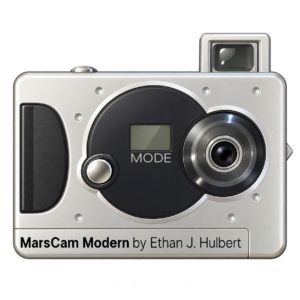
MarsCam Modern is a free Windows application for retrieving photographs from certain early-2000s miniature digital cameras built around the Mars Semiconductor MR97310 family. These cameras were sold under several names, including Vivitar Mini Digital Camera, and originally depended on software and drivers intended for Windows 98, ME, 2000, and XP.
MarsCam Modern lets a compatible camera communicate with Windows 10 (and likely Windows 11, though I haven’t tested it) through Microsoft’s built-in WinUSB driver, displays its stored photographs, and saves them as viewable PNG images together with copies of the original camera data. It also provides optional image-processing styles and experimental glitch renderings. The program does NOT delete or reset photographs on the camera.
Download MarsCam Modern
Download MarsCam Modern 0.7.4 for Windows (ZIP)
Platform: 64-bit Windows 10 or Windows 11. Release: October 23, 2026. Price: free. No installer is required. Extract the ZIP and open MarsCam.exe. The download includes an illustrated README.html with more detailed setup instructions.
Compatibility note: The program has been tested successfully with a physical Vivitar camera reporting USB hardware ID USB\VID_093A&PID_010E on Windows 10. Windows 11 is a target platform but has not yet been tested with the physical camera. Other cameras using related Mars hardware may look nearly identical, but compatibility with every rebadge or revision cannot be guaranteed. A related 093A:010F device is known from historical material but has not been validated with this application.
 Before doing anything: If the camera contains photographs you care about, leave its AAA battery installed and avoid unnecessary power interruptions. These cameras use volatile storage and can lose photographs if power is interrupted. Download the pictures before experimenting with the camera’s settings.
Getting started
- Download and extract the ZIP above. Do not try to run the application from inside the compressed ZIP.
- Connect the camera with its correct USB data cable. The tested Vivitar uses an uncommon four-contact miniature USB connector; an ordinary five-contact Mini-USB cable is not interchangeable. The camera may show
PCon its small display. - Open
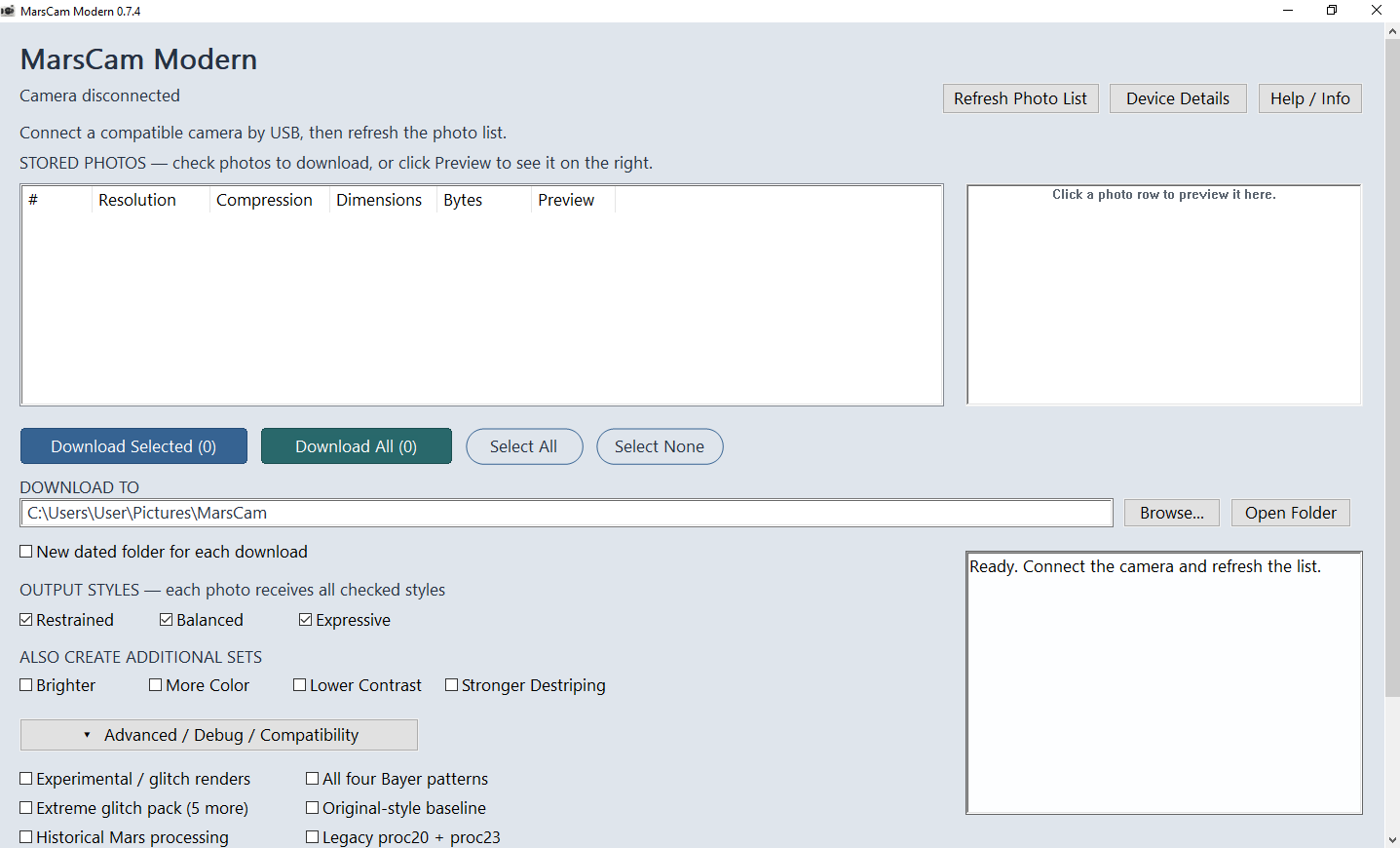
MarsCam.exe. If Windows recognizes the camera but MarsCam cannot communicate with it, follow the one-time WinUSB instructions in the next section. - Click Refresh Photo List. The program reads the camera’s photograph directory and displays the images it can identify.
- Click a photograph’s row to preview it on the right. Check the boxes next to the photographs you want to save; previewing does not alter your checkboxes.
- Choose a destination with Browse, select your preferred image styles, and click Download Selected or Download All.
- Keep the resulting
.emarsrawfiles along with the PNGs. They preserve the original camera payload and make future reprocessing possible.
If the application is already communicating with your camera, you do not need to change any drivers. If it is not, the following setup normally needs to be done only once per Windows device installation.
One-time Windows driver setup: WinUSB
MarsCam Modern does not require the original, obsolete Mars camera driver. Instead, it communicates through WinUSB, a USB driver included with Windows. On some computers, the camera is detected but is not automatically associated with WinUSB. In that case, it must be configured manually in Device Manager.
Important: Driver changes affect the selected USB device. Before following these steps, confirm that you have identified the camera and not another piece of hardware. Do not install an unknown driver-updater program, an old MR97310c.sys file, or a driver offered by an unrelated download site.
- Connect the camera, then right-click the Windows Start button and open Device Manager.
- Look for an entry such as Dual-Mode Digital Camera, possibly under Other devices with a warning symbol. Its name or category may differ.
- Right-click that entry and select Properties. Open the Details tab, choose Hardware Ids from the Property dropdown, and look for
USB\VID_093A&PID_010E(possibly followed by an additional revision or instance string). If the ID does not match, stop here: the device has not been verified as compatible. - For the confirmed device, choose Update driver (from its right-click menu or Properties).
- Select Browse my computer for drivers, then Let me pick from a list of available drivers on my computer.
- Choose Universal Serial Bus devices, then WinUsb Device. Depending on Windows, you may see Microsoft listed as the manufacturer.
- Complete the wizard for the confirmed camera, reconnect it if needed, and reopen MarsCam Modern. Click Refresh Photo List.
If Universal Serial Bus devices or WinUsb Device is missing, do not select an unrelated driver as a substitute. The options available depend on the Windows installation and device state. Consult the included README or the Microsoft WinUSB installation documentation. Reassigning the camera to WinUSB may also replace a driver previously used by its original webcam software.
Windows displaying a USB connection notification, or the camera displaying PC, does not necessarily mean WinUSB is configured. The device can be physically present while MarsCam Modern still cannot open it.
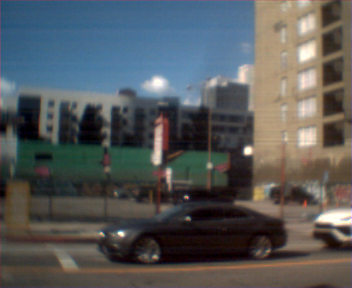
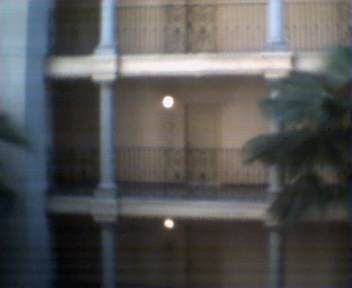
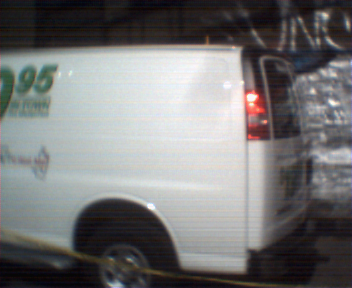
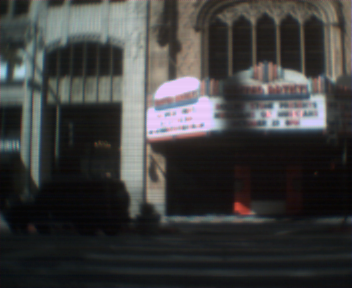
Here are examples of test photos I took in October 2026 with my Vivitar Mini Camera and successfully uploaded onto my Windows 10 PC using this software:
Which cameras are these?
The best way to identify one of these cameras is by its actual hardware, not by the branding printed on the case. Similar Mars Semiconductor designs were sold under multiple names, and the names were not always used consistently.
Names and product descriptions found in historical manuals, listings, and driver information include:
- Vivitar 3-in-1 Mini Digital Camera / Vivitar Mini Digital Camera
- Vivitar Mini Digital Camera with Accessory Kit
- Crystal Digital
- Dual Smart
- Genesis Logic
- Innovage Outdoor Sports Mini Digital Camera
- L’espion Mini Spy Digital Camera
- Mini Digital Camera
- Philips Keychain Digital Camera
- Dual Mode Digital Camera
- MR97310 VGA Dual Mode Camera
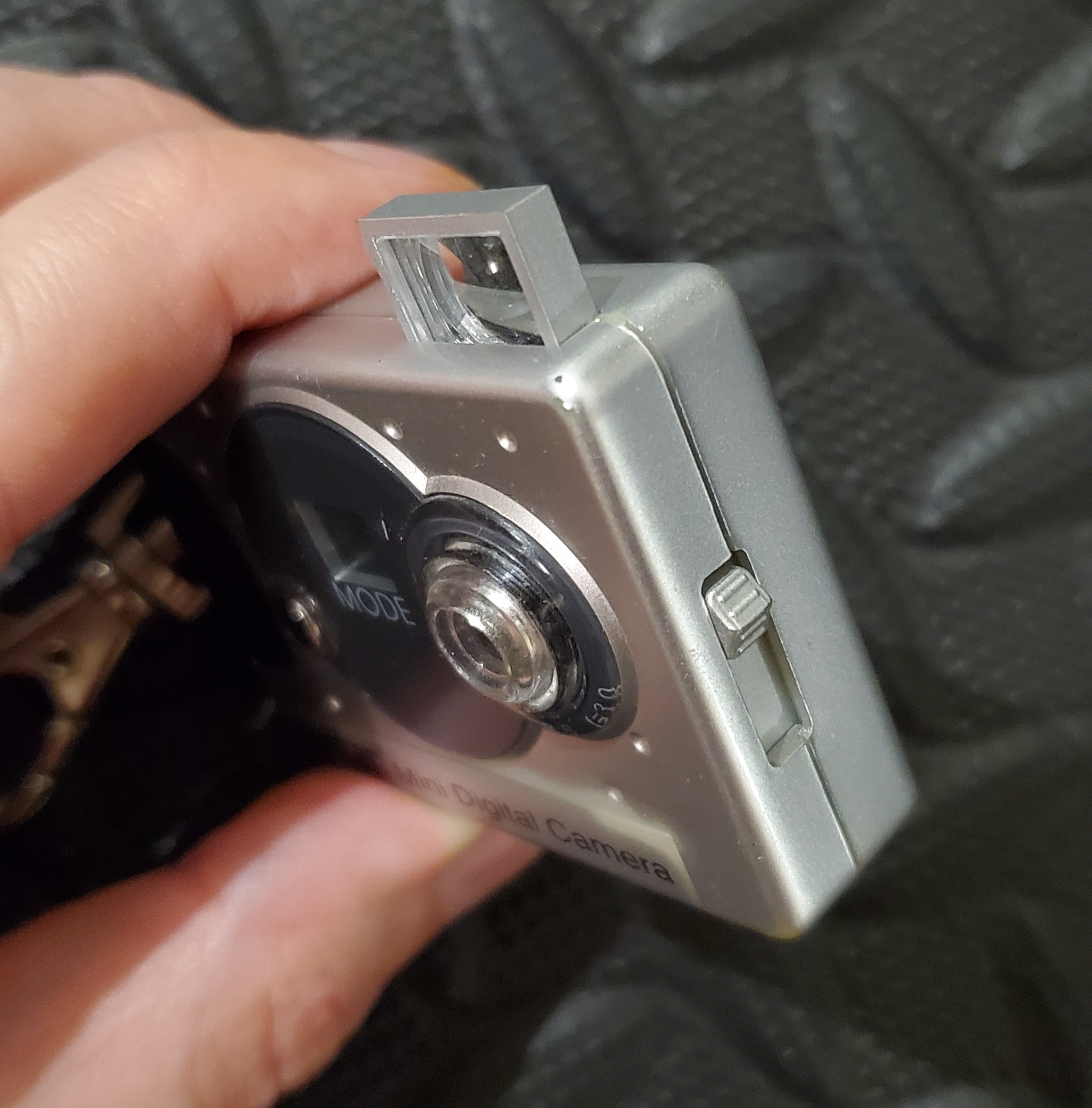
This is a list of encountered names and related labels, not a guarantee that every device sold under all of these names will work with MarsCam Modern. Some related cameras have different sensors, USB identifiers, resolutions, or firmware. The particular tested camera is a small silver Vivitar unit with a large black circular front panel, a separate projecting round lens, a front MODE button, a top SNAP button, and a raised rectangular optical viewfinder.
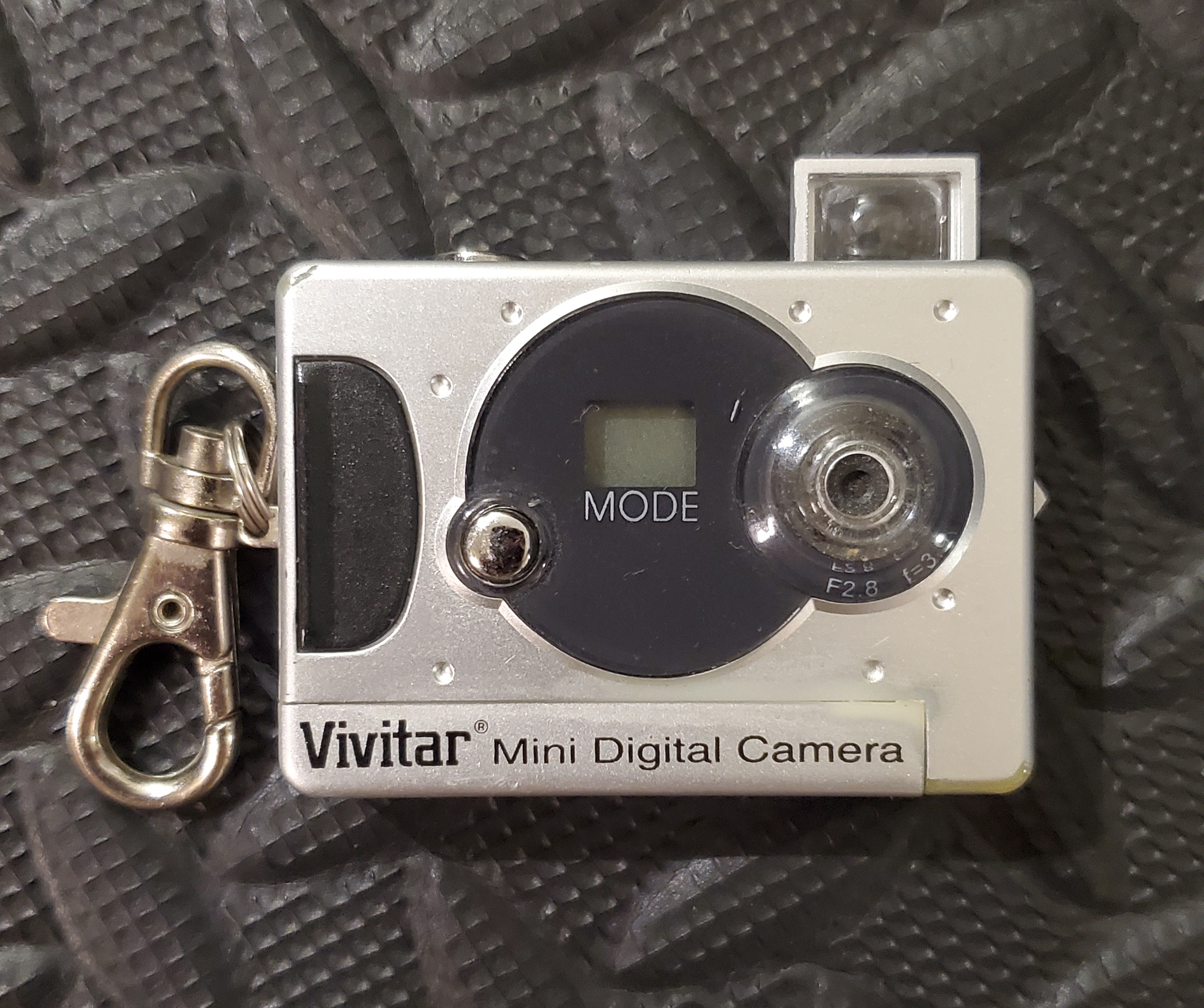 The original Vivitar accessory-kit packaging identifies the product as a three-in-one still/video/webcam camera, claims 16 MB of memory and storage for up to 243 photographs, and lists Windows 98, ME, 2000, and XP. The packaging carries a 2007 Innovage copyright and a suggested price of $39.99.
Camera specifications
The following figures come from surviving manual and retail material for the camera family. Actual values can vary between rebadged versions. The image dimensions and still-image data sizes have been independently confirmed for the tested Vivitar.
| Feature | Specification / observation |
|---|---|
| Chipset family | Mars Semiconductor MR97310 / MR97310A family |
| Verified USB identification | 093A:010E; related 093A:010F not tested |
| Image sensor | 1/4-inch CMOS (historical manual specification) |
| High resolution (HR) | 352 × 288 pixels (CIF) |
| Low resolution (LR) | 176 × 144 pixels (QCIF) |
| Compression | Selectable compressed (CP) and non-compressed (nP) camera formats |
| Memory | 16 MB SDRAM (historical manual/packaging claim); volatile storage |
| Lens aperture | f/2.8 (manual) |
| Exposure and white balance | Automatic |
| Shutter speeds | Approximately 1/60–1/1500 second (manual) |
| Self-timer | Approximately 10 seconds |
| Video / webcam | Advertised by the original software and packaging, with 352 × 288 or 176 × 144 video modes and manual frame-rate figures of about 12 fps or 6–8 fps depending on mode. Not currently supported as video capture or webcam use in MarsCam Modern. |
| Display | Two-character numeric/segment LCD; not a photo preview screen |
| Battery | One AAA battery |
| Auto power-off | Approximately 30 seconds idle (manual) |
| Low-battery indication | Lo (manual) |
| Size / weight | About 58.7 × 41.7 × 15 mm; about 27 g without battery (manual) |
| Camera-side USB plug | Uncommon four-contact miniature USB connector on the tested unit |
| Original operating systems | Windows 98 / 98SE / ME / 2000 / XP |
Photo capacity by setting
Unlike a camera that stores JPEG files at one resolution, this camera can trade off both pixel count and compression. The manual gives these approximate maximum capacities for an empty 16 MB unit:
| Camera setting | Dimensions | Approximate capacity |
|---|---|---|
| HR + nP (high resolution, non-compressed) | 352 × 288 | 20 photos |
| HR + CP (high resolution, compressed) | 352 × 288 | 60 photos |
| LR + nP (low resolution, non-compressed) | 176 × 144 | 81 photos |
| LR + CP (low resolution, compressed) | 176 × 144 | 243 photos |
These are advertised/approximate capacities, not guarantees of an exact number of exposures in every situation. Compressed image sizes vary with the image contents. The LCD normally shows the remaining number of photographs at the current settings; for example, 20 is the default empty-camera capacity in HR + nP mode.
Using the camera’s MODE and SNAP buttons
The camera has two primary controls. MODE, on the front, turns the camera on and cycles through settings displayed as two-character codes. SNAP, on top, takes a picture in normal shooting mode or selects/activates the currently displayed function. Some settings require a second press to confirm. (Some cameras may also have the manual lens-lift nub, but this is mechanical only and does not influence any of the digital settings.)
To power on, press MODE. The display may briefly show Hr or Lr, followed by the remaining-photo count. Press SNAP while the normal count is displayed to take a photo. A short beep indicates a successful exposure; in inadequate light the camera may sound several beeps and leave the count unchanged.
Pressing MODE repeatedly cycles through functions. On the tested camera, a typical sequence was approximately normal → OF → Ct → AI → St → CL → CA → Lr → CP → F6, then back around. That sequence can change after switching settings or between hardware revisions. Read the two-character display instead of relying on a fixed number of button presses.
| LCD code | Function | What to know |
|---|---|---|
OF |
Power off | Select with SNAP to shut down. |
St |
Self-timer | Press SNAP; exposure is delayed by about 10 seconds. |
Ct |
Continuous shots | Hold SNAP to take successive photographs until released or memory fills. |
AI |
Video/AVI mode | Original manual describes recording while SNAP is held; this program focuses on still recovery. |
Hr |
High resolution | 352 × 288; press SNAP to choose. |
Lr |
Low resolution | 176 × 144; press SNAP to choose. |
CP |
Compressed | More photos, with some image-quality loss; press SNAP to choose. |
nP / NP |
Non-compressed | Fewer photos, generally better source quality; press SNAP to choose. |
F5 |
50 Hz anti-flicker | For lighting associated with 50 Hz electrical systems. |
F6 |
60 Hz anti-flicker | For lighting associated with 60 Hz electrical systems. |
CL |
Clear last photo | Destructive. The original manual describes a selection and confirmation sequence. |
CA |
Clear all photos | Destructive. Do not confirm unless you intend to erase the camera’s pictures. |
Lo |
Low battery | Replace the battery only after recovering photographs if possible. |
PC |
Computer connection | May appear when connected via USB. |
Warning: If the LCD displays CL or CA, do not press SNAP unless you deliberately want to delete photographs. MarsCam Modern itself does not provide delete controls, but it cannot protect you from a deletion initiated with the physical buttons.
USB cable, power, and storage precautions
The tested silver Vivitar uses an uncommon four-pin miniature USB camera connector. It is often listed as 4-pin Mini-USB, Mini USB 4P, or 4-pin Mini-USB-B. Those names are not always used consistently by cable sellers, so check the shape and the four metal contacts against your actual camera. It is not a standard five-pin Mini-B, Micro-USB, or four-pin FireWire connection.
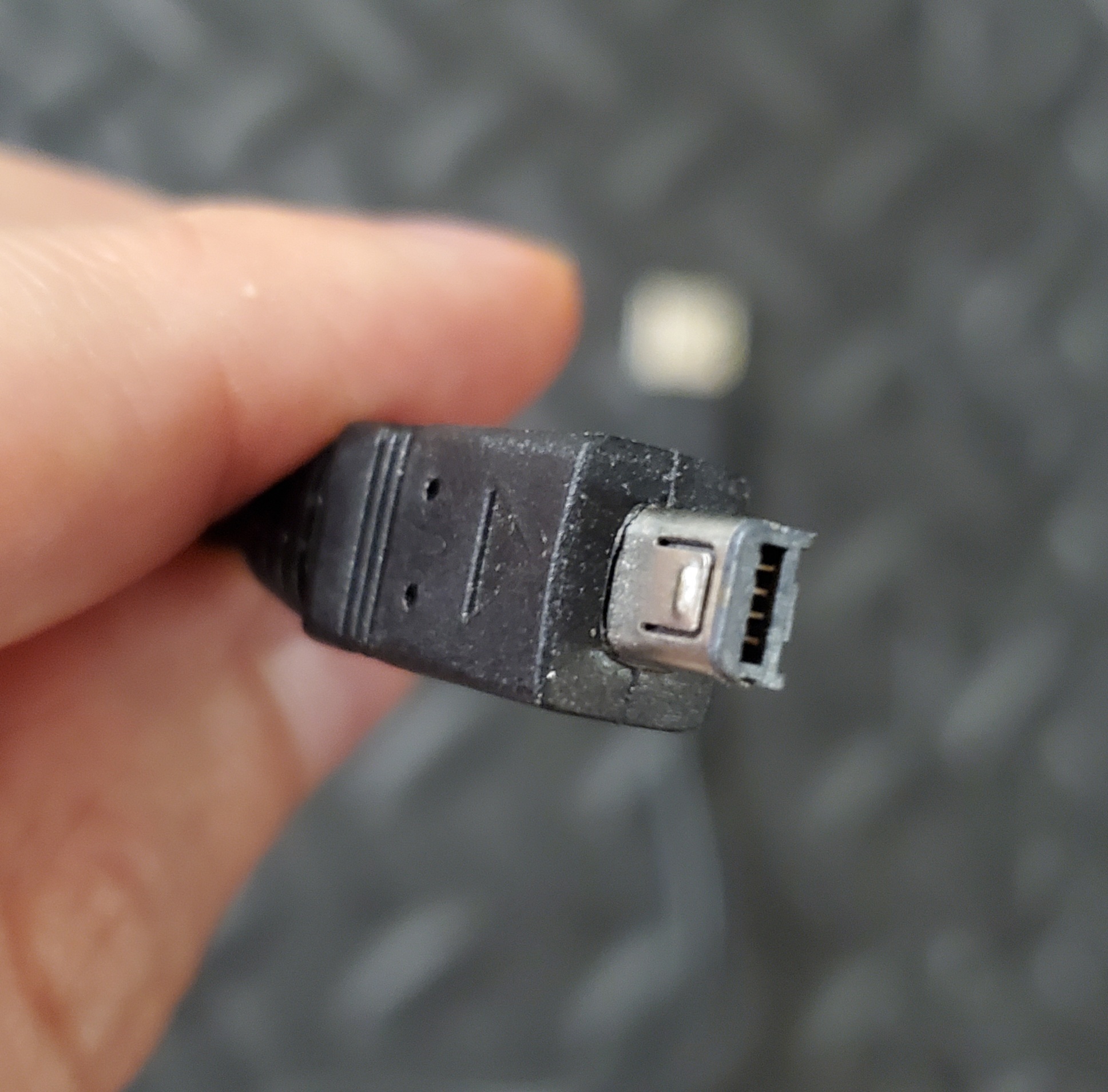
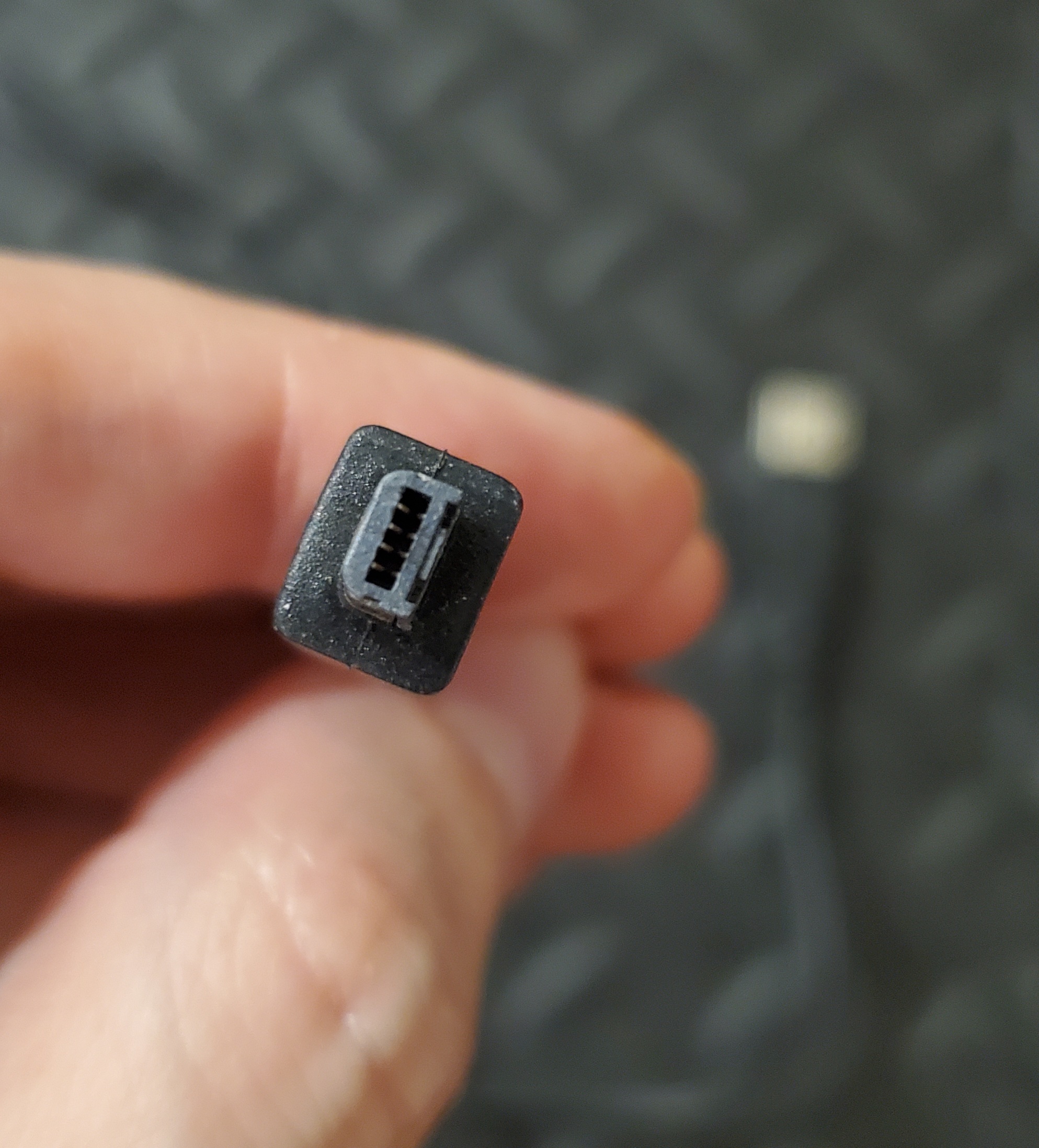
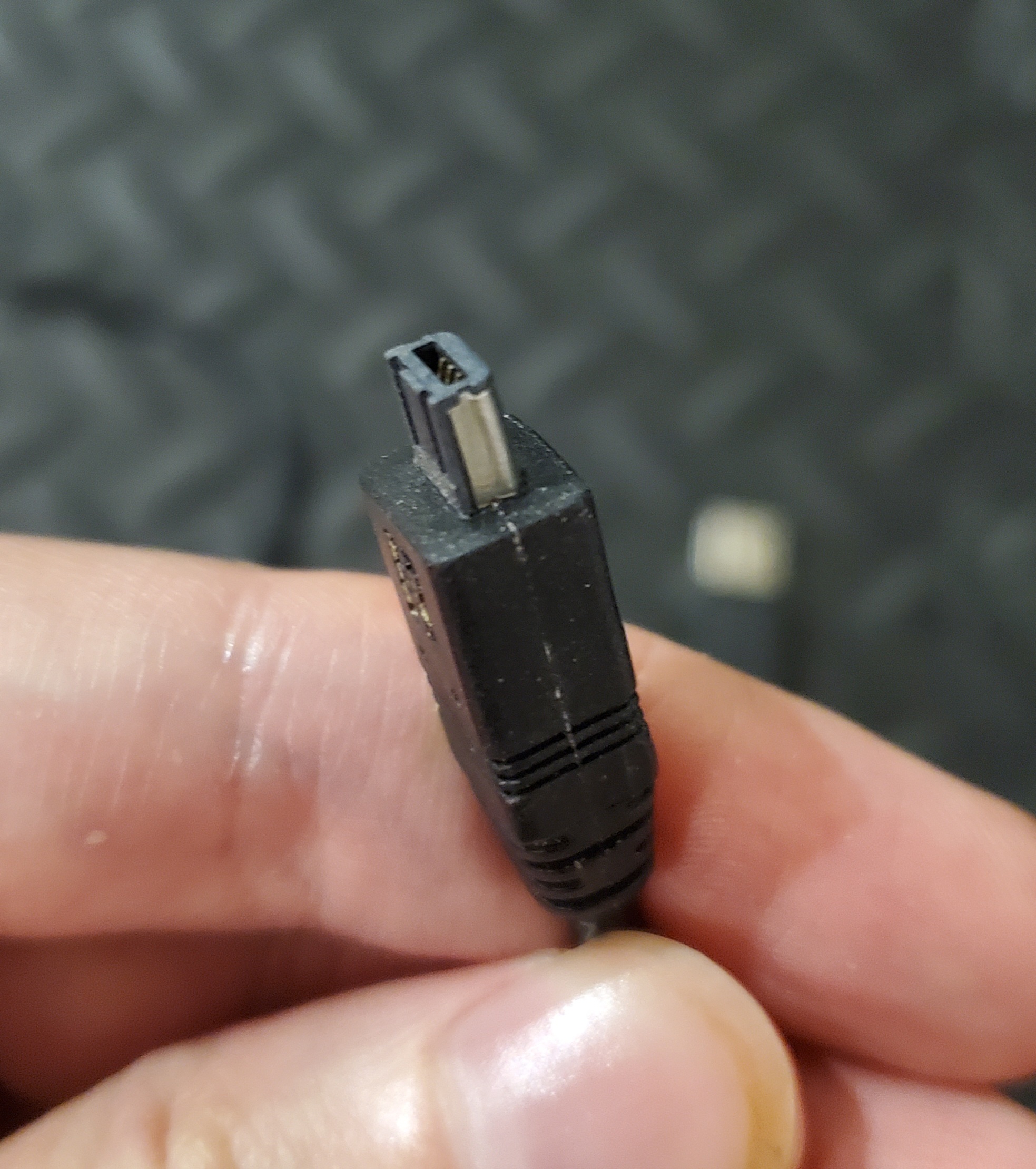
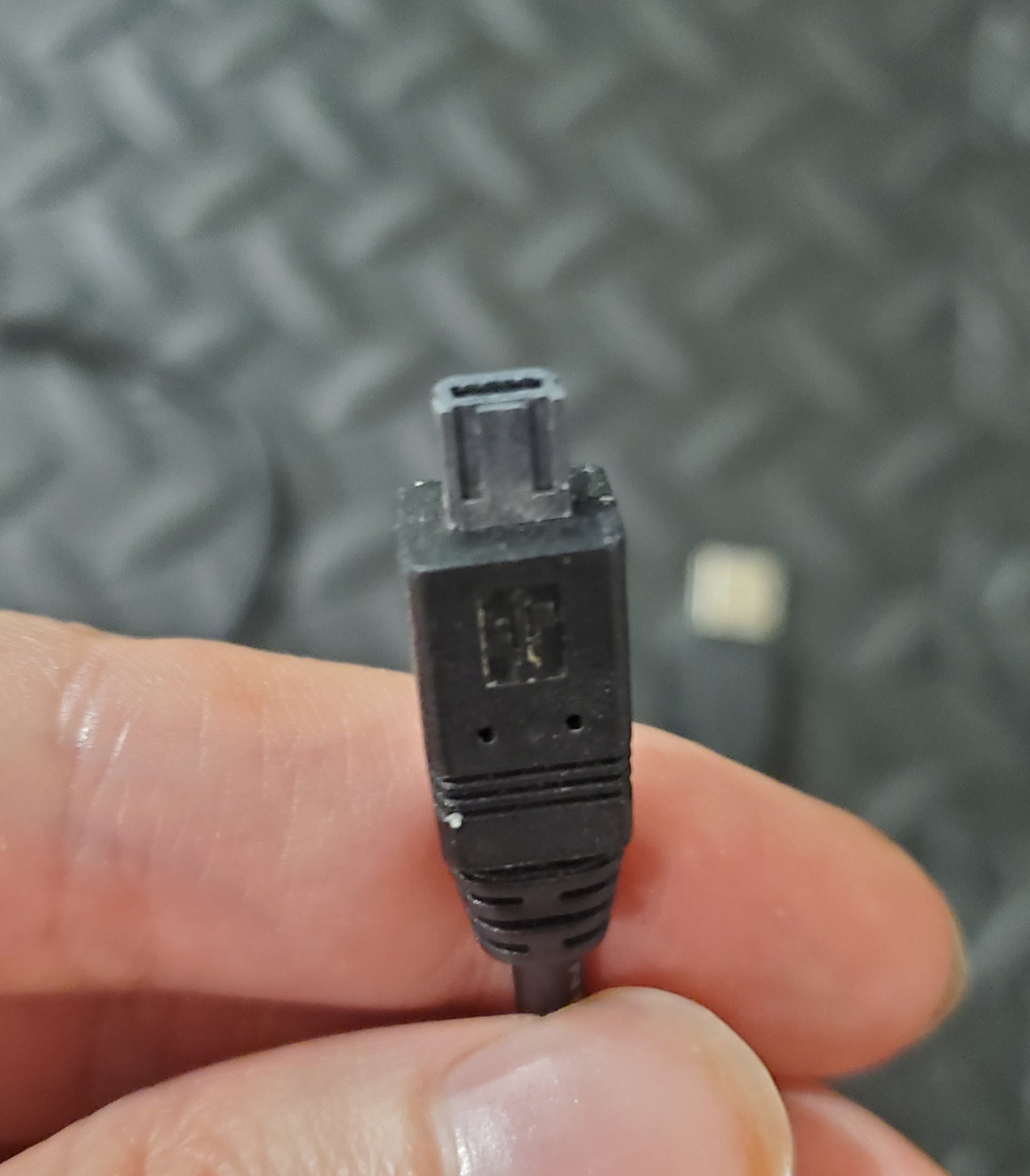
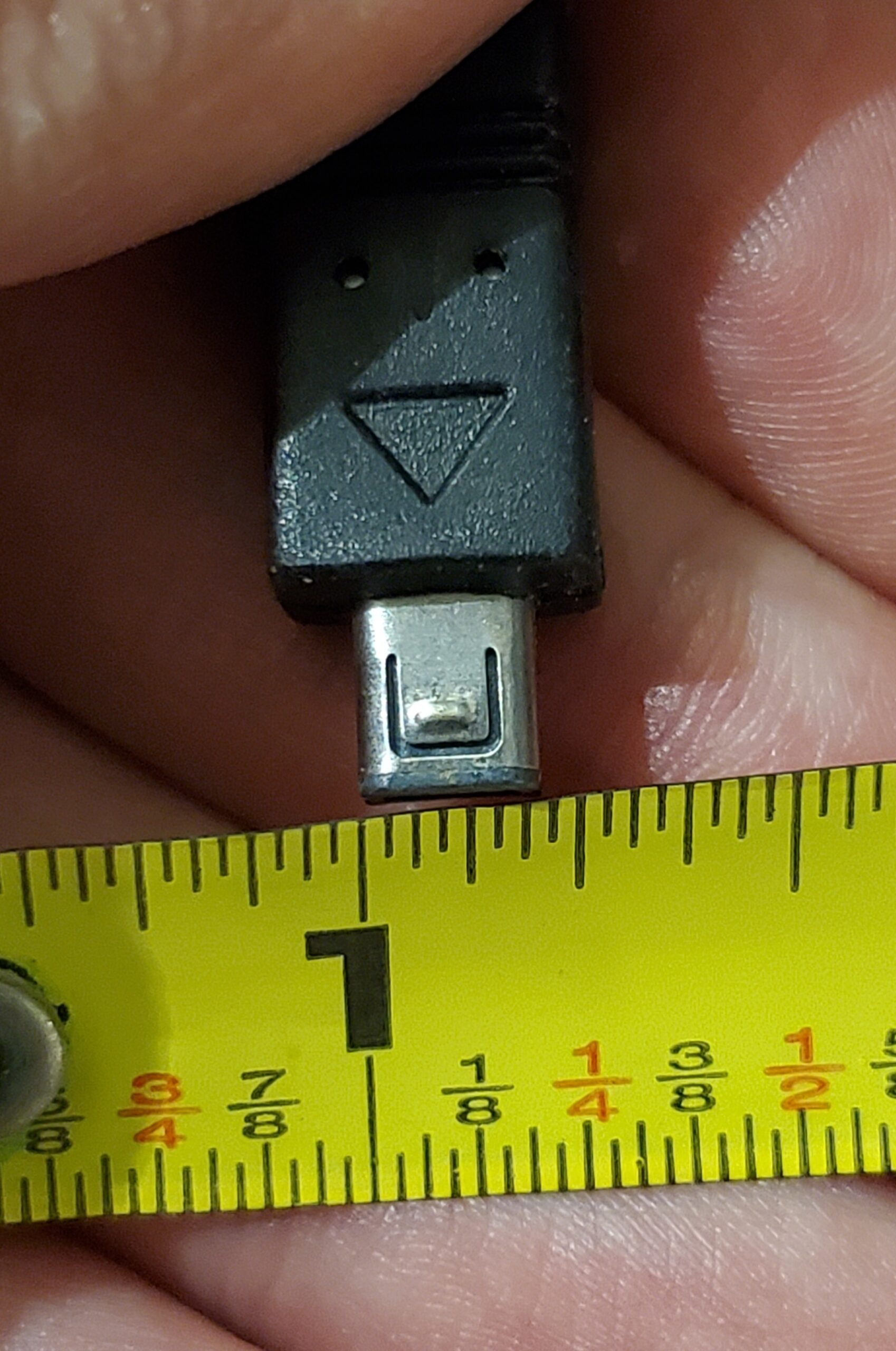
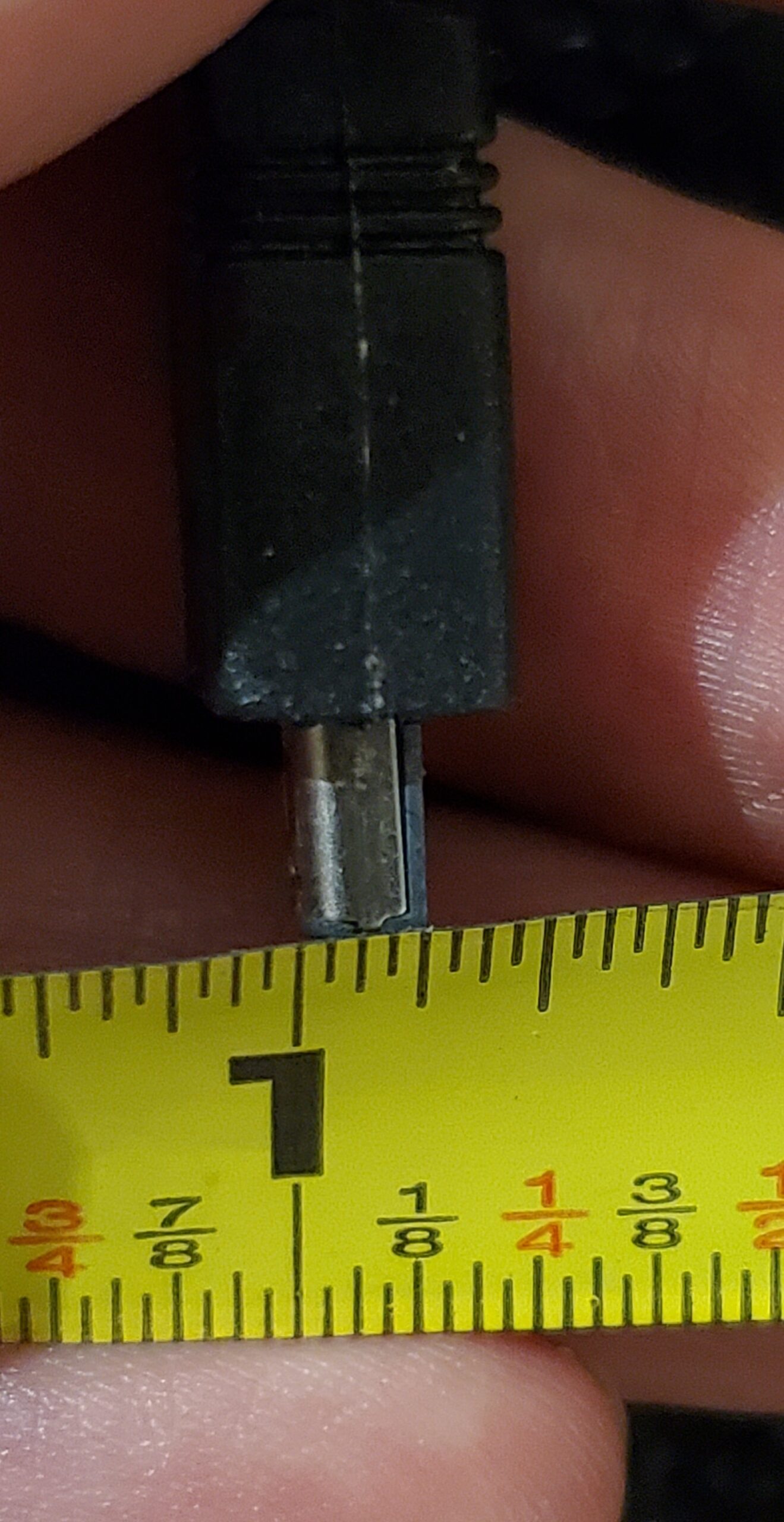
The camera’s photographs are stored in memory that depends on power. Removing the AAA battery may erase them. A long USB connection can also produce confusing behavior on an aging specimen. It is best to prepare the software and driver before shooting a large batch, then connect, copy the data, and disconnect without leaving the camera in PC mode unnecessarily.
What MarsCam Modern downloads
The main window lists each recognized photograph with its number, resolution, compression status, pixel dimensions, and stored byte count. Clicking a row previews that photograph without automatically downloading every image. Checkboxes remain selected while you inspect other rows. Select All and Select None can manage the entire list; the download buttons show the selected and total counts.
Choose the destination folder with Browse, or use Open Folder to open it in Windows. There is also an option to create a separate dated folder for each download session; folders are numbered _01, _02, and so on.
Image-processing styles
By default the program offers three render styles, all derived from the correctly decoded camera data:
- Restrained: a gentler, less aggressive rendering.
- Balanced: a general-purpose interpretation of brightness, contrast, and color.
- Expressive: a stronger treatment with more visual character.
You can select any combination of those styles. Additional checkboxes can generate brighter, more saturated, lower-contrast, or more strongly destriped versions without replacing the original selections. These are different interpretations of the same captured data; they cannot reconstruct highlights or detail that the sensor never recorded.
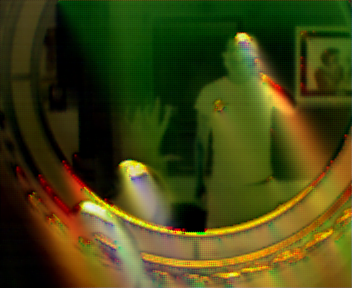
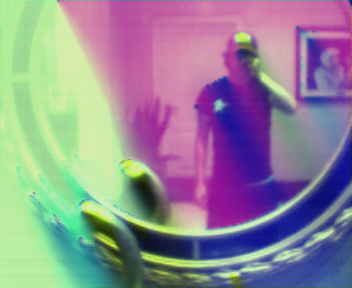
The expandable Advanced / Debug area offers further rendering experiments, alternative Bayer-pattern interpretations, diagnostic files, and deliberately corrupted/glitch images. The Extreme glitch pack includes effects such as scanline shear, RGB channel tear, solarize/posterize, mosaic shred, and digital storm. Some additional experimental decodes are available only for CP photos because they manipulate the compressed bitstream; nP photos do not have one. Generating many PNGs for one picture is intentional.
Original files and filenames
MarsCam Modern saves the original camera payload with the project-specific extension .emarsraw and creates PNGs for the selected styles. An example set looks like this:
MarsCam_001_HR-nP_261023135620.emarsraw
MarsCam_001_HR-nP_restrained_261023135620.png
MarsCam_001_HR-nP_balanced_261023135620.png
MarsCam_001_HR-nP_expressive_261023135620.png
The six-digit photograph number is not a permanent camera serial number. The camera reuses positions such as 001, 002, and 003 when new photographs are taken. The YYMMDDHHMMSS portion records when MarsCam downloaded the image, not when the picture was taken. The underlying format does not provide a verified original capture date/time. If a filename already exists, the program adds a collision-safe suffix rather than silently overwriting it.
.emarsraw is a preservation format used by this project, not a standard Photoshop/Lightroom camera RAW format. It is useful because it retains the data needed to try different decoders or rendering methods in the future. Advanced options can also save the full padded USB transfer, decoded Bayer samples, and protocol information.
Troubleshooting and data recovery cautions
The camera says PC, but no photographs appear
Check the cable, the camera’s power, and Device Manager. A camera showing PC is not proof that WinUSB is installed. Confirm the hardware ID and driver assignment, then use Refresh Photo List. If the camera is not recognized or the ID differs, do not assume it is compatible merely because it looks similar.
The photo list changes between refreshes
This has been observed on the tested hardware. The camera’s internal photo directory can be inconsistent across reads; the program makes multiple bounded attempts and validates what it finds. In one instance, after an apparent reset and a new photograph, an initial refresh showed older, still-downloadable pictures, while a later refresh showed the new picture instead. The cause is unknown. If unexpected older photographs appear, download them immediately before pressing Refresh again. Do not rely on the program to restore files that have truly been overwritten or lost to a complete power failure.
The photos look dark, striped, tinted, or washed out
The tiny CMOS sensor and the original processing are major limitations. Strong sunlight, deep shadows, high-contrast scenes, and artificial lighting can produce heavy clipping, uneven color, and horizontal row banding. Try the three normal styles and the optional brightness or destriping sets. The alternate Bayer and intentionally glitched renders are experiments, not evidence of a damaged original file.
Windows warns about an unfamiliar app
MarsCam Modern is an independently distributed portable utility, not a Microsoft Store application. Windows may display an unknown-publisher or SmartScreen warning for an unsigned program. Confirm that you obtained it from this site; do not ignore warnings for files from unrelated download sites.
Technical details: how the photographs are extracted
The camera is not a standard USB flash drive and does not expose its photographs as ordinary JPEG files in a browsable folder. The application communicates with a vendor-specific USB interface, reads the internal photo allocation table, requests each photograph at its stored address, extracts the original Bayer-based image payload, and then translates that data into conventional PNG images.
Camera (MR97310-family hardware)
    |  WinUSB bulk commands and data
    v
Read / validate photo allocation table (PAT)
    |
    v
Select photo -> retrieve padded USB transfer
    |
    v
Remove transport lead-in and preserve .emarsraw
    |
    +-- nP: uncompressed Bayer samples
    |
    +-- CP: Mars predictive bitstream -> Bayer samples
    |
    v
BGGR demosaic -> color/tone/destriping -> PNG variants
USB identity and endpoints
The verified device identifies as USB vendor/product 093A:010E and exposes a vendor-specific interface. The three pipes used for still-photo extraction are:
| Endpoint | Type / direction | Role |
|---|---|---|
0x04 |
Bulk OUT | Commands and status requests |
0x83 |
Bulk IN | 16-byte command/status responses |
0x82 |
Bulk IN | Configuration blocks and photograph data |
Notably, endpoint 0x83 is bulk IN on the tested camera, not an interrupt endpoint. The verified USB descriptors report USB version 0x0110 (USB 1.1), device revision 0x0100, and a vendor-specific interface; the relevant bulk endpoints have observed maximum packet sizes of 16 bytes for commands/status and 64 bytes for data. The implementation uses Windows SetupAPI for device discovery and WinUSB for the USB transfers. It does not install the old kernel driver or require the original MARSCAM application.
Command exchange and safety
A status request consists of 0x21 sent on bulk OUT followed by a 16-byte response from 0x83. The principal command prefix is 0x19, used with 0x51 (start), 0xB5 (initialization), and 0x0F (get data). Photo-positioning commands include six address/position bytes from the camera’s directory record. A status byte of 0x0A is an important successful-positioning indication.
The protocol is timing-sensitive. MarsCam Modern uses bounded status polling, finite transfer timeouts, limited retry behavior, and careful WinUSB handle closing/reopening between configuration observations. It never issues the destructive/unsafe 19 54 reset command, and the user interface has no camera delete or firmware-write functions. One narrowly defined historical single-byte recovery exchange is permitted only when the camera reports the specific 0x02 state, with a strict one-attempt limit.
Photo allocation table (PAT)
The camera returns an 8,192-byte configuration block that may contain the photograph directory, known as the photo allocation table (PAT). The relevant directory can start at byte offset 0x10 or 0x90. Individual entries are eight bytes long. They encode the image’s format, the six positioning bytes used by the download protocol, and a stored-length field.
PAT entry: 8 bytes
byte 0       format / flags
bytes 1-6    positioning information
bytes 4-6    payload length, little-endian
byte 7       meaning not fully established

stored_size = byte4 + (byte5 << 8) + (byte6 << 16)
resolution  = byte0 & 0x0F
compressed  = (byte0 & 0x20) != 0
The low nibble identifies the verified still-image sizes: 0 for 176 × 144 and 2 for 352 × 288. Bit 0x20 is the compression flag; bit 0x80 is not the compression flag. Other historically documented format codes have not been validated with the tested camera.
Directory reads can return fragments, stale-looking entries, or data that does not belong to the expected configuration page. MarsCam Modern therefore uses up to five bounded observations, explicitly closing/reopening the WinUSB connection between them, checking both known PAT offsets, validating record sizes, and combining distinct credible entries. It does not blindly trust the first plausible count or address.
Raw image lengths and USB padding
The two verified non-compressed image sizes are exact:
HR nP: 352 x 288 = 101,376 Bayer bytes + 12-byte header
       = 101,388 bytes total

LR nP: 176 x 144 = 25,344 Bayer bytes + 12-byte header
       = 25,356 bytes total
Compressed files instead contain a 12-byte Mars image header followed by a variable-length compressed payload, typically smaller than the equivalent uncompressed image. The USB transfer itself is padded to a larger block allocation. The implementation uses the historically documented formula:
padded_transfer_bytes =
    ((stored_size + 0x1B0) / 0x2000 + 1) * 0x2000
For one controlled four-mode test, the actual payload sizes and padded USB transfer lengths were:
| Mode | Stored payload | USB transfer |
|---|---|---|
| HR + nP | 101,388 bytes | 106,496 bytes |
| HR + CP | 21,285 bytes | 24,576 bytes |
| LR + nP | 25,356 bytes | 32,768 bytes |
| LR + CP | 5,965 bytes | 8,192 bytes |
The downloaded transport includes a 128-byte lead-in before the actual image payload. The original payload preserved as .emarsraw is the exact slice transfer[128 : 128 + stored_size]. Advanced full-transfer exports retain the 128-byte lead-in and the trailing USB padding, while ordinary PNG exports do not. The CP sizes in this example are image-dependent rather than fixed constants.
Compressed photographs: a proprietary predictive bitstream
CP images are not JPEGs, ZIP files, or simple run-length encoding. Their bytes use a compact variable-length predictive scheme documented in historical libgphoto2 Mars camera support. The decoder reads codes most-significant-bit first. Each code either reuses a predicted Bayer value, adjusts it by a small or large amount, or supplies a new approximate absolute value. The prediction references nearby samples from the same Bayer color plane, rather than mixing red, green, and blue pixels directly.
| Bit prefix | Decoded operation |
|---|---|
0 |
Predicted value unchanged |
101 |
Prediction + 3 |
110 |
Prediction − 3 |
1000 |
Prediction + 8 |
1001 |
Prediction − 8 |
11100 |
Prediction + 20 |
1111 |
Prediction − 20 |
11101 + five bits |
Five-bit value shifted left three places |
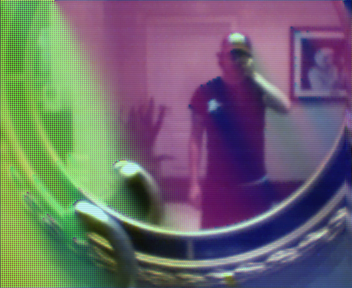
The result is a reconstructed 8-bit Bayer image with the same dimensions as an uncompressed photograph. This explains why some intentionally incorrect compressed decodes produce spectacularly distorted but still recognizable images: changing the bit alignment or residual signs corrupts a spatial prediction chain. Those variants are preserved as optional experimental output, never substituted for normal decoding.
Bayer color, image processing, and the original MARSCAM BMPs
The sensor does not directly produce an ordinary RGB bitmap. Its raw samples follow a Bayer color-filter mosaic. For the tested camera, controlled HR/LR and CP/nP images establish BGGR as the correct Bayer phase. An older historical Mars decoding path used an RGGB assumption; applying it to this particular camera produces severely incorrect colors. Advanced controls can override the pattern for hardware variants that may use a different arrangement.
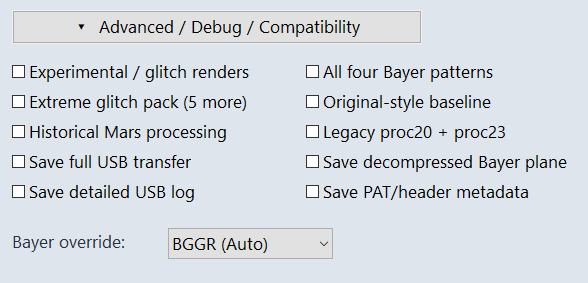 MarsCam Modern uses bilinear Bayer demosaicing followed by configurable color balance, contrast, gamma/highlight handling, and horizontal-row destriping. The little sensor can show prominent scanlines, unusual color casts, dark shadows, and irrecoverable blown highlights. These are characteristics of the source data and camera hardware, not automatically evidence of broken extraction.
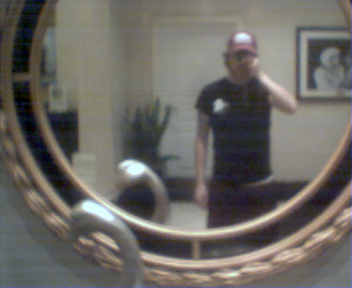
Here are some examples of the “Experimental / glitch renders” output setting on the same photograph:
Surviving photographs exported by the original proprietary MARSCAM program are ordinary uncompressed 24-bit BMP files. Examples exist at the native sizes of 352 × 288 and 176 × 144; their softer rendering, warm indoor color, and relatively subtle row banding provide historical reference points. MarsCam Modern does not claim to reproduce the proprietary application’s appearance pixel for pixel, and its experimental “historical” interpretation remains an approximation without a matching original raw/BMP pair.
Limits of the current support
The program concentrates on still-image extraction from the tested MR97310-family camera. Its existing release does not provide a live webcam driver, video-capture interface, general camera firmware tools, or guaranteed recovery of deleted data. Other related Mars devices may have different directory layouts, sensor orientations, or file types. Some PAT bytes, image-header fields, and the precise reason the camera occasionally reports different photo lists remain unknown.
Full technical references
The two complete Markdown guides contain the protocol reconstruction, extensive format details, implementation notes, rendering parameters, compatibility limitations, and preservation findings. They are intended primarily for developers and anyone researching these cameras:
- Mars MR97310 Still-Image Extraction and Translation Reference (.md) — hardware, USB protocol, photo allocation tables, file structures, decompression, image processing, and test evidence.
- MarsCam Modern Software Product Design and Release Guide (.md) — the application interface, output choices, safety boundaries, compatibility settings, and distribution details.
Other useful primary references include libgphoto2’s Mars camera support and Microsoft’s WinUSB installation documentation. The MarsCam Modern application uses independently written code informed by historical public technical references; it does not distribute the original proprietary driver or MARSCAM software.
More photos
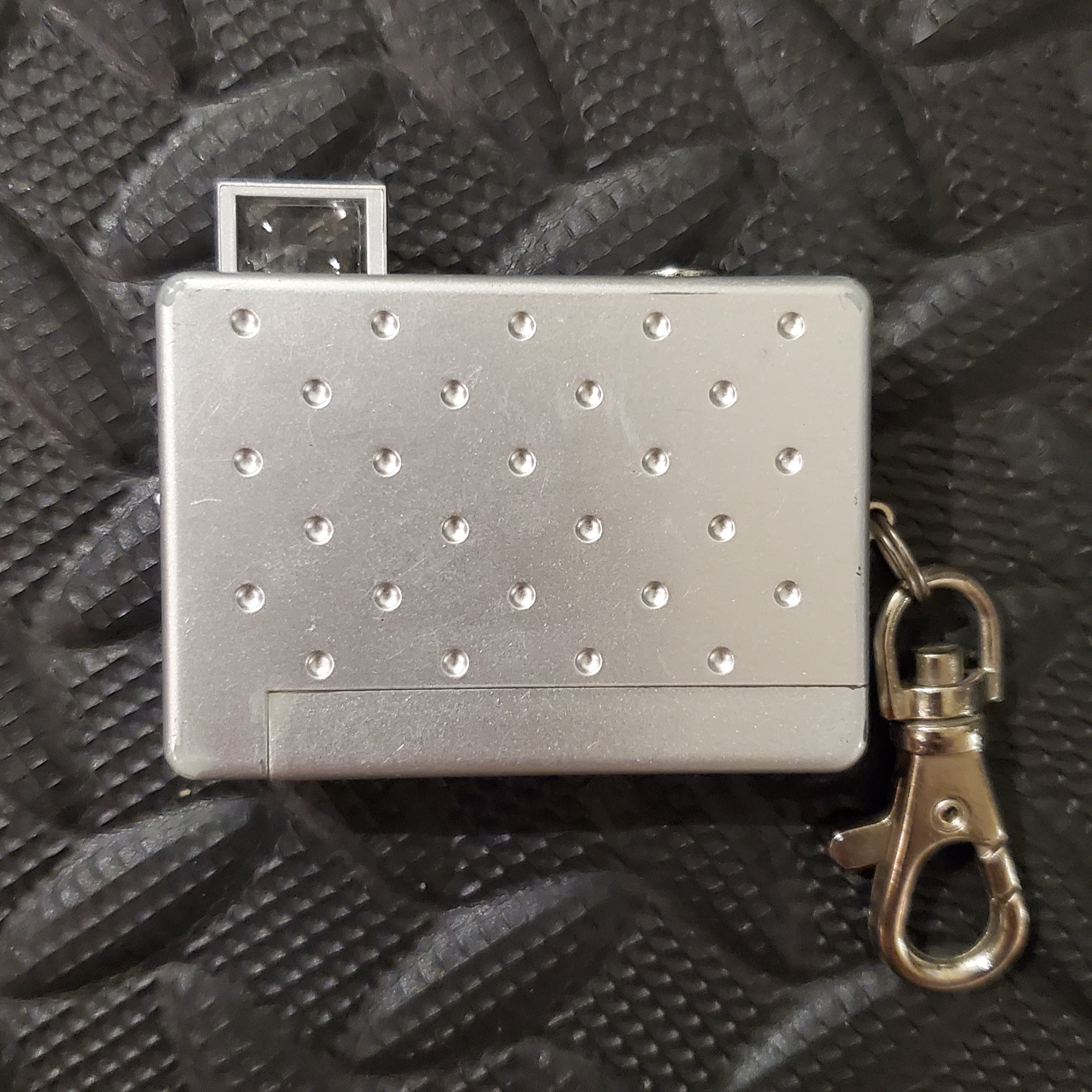
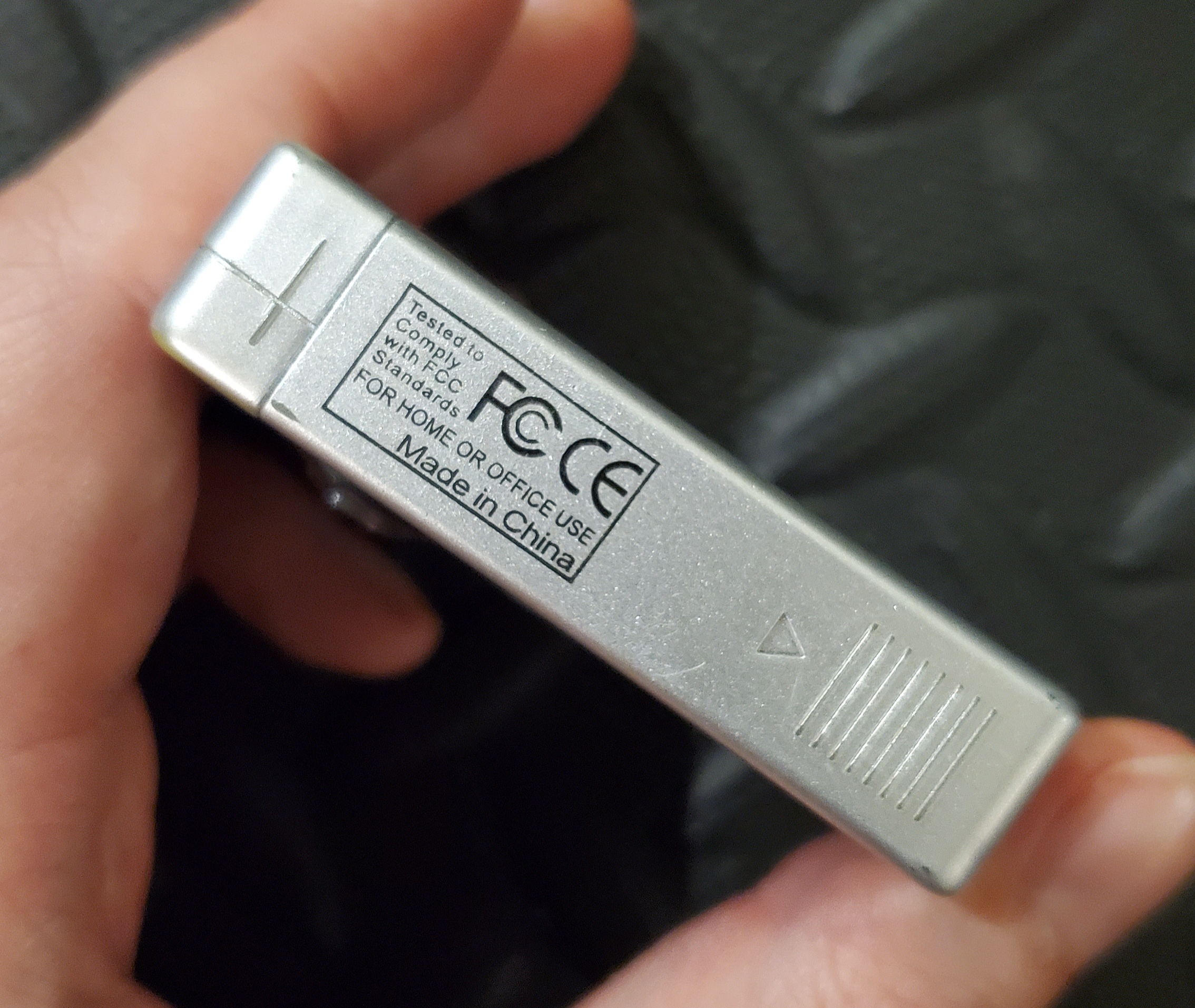
Here are more photos of the Vivitar Mini Digital Camera in grey/silver and black. Note that it says “Tested to comply with FCC standards; For home or office use; Made in China” and the lens states “F2.8 f=3.9”.
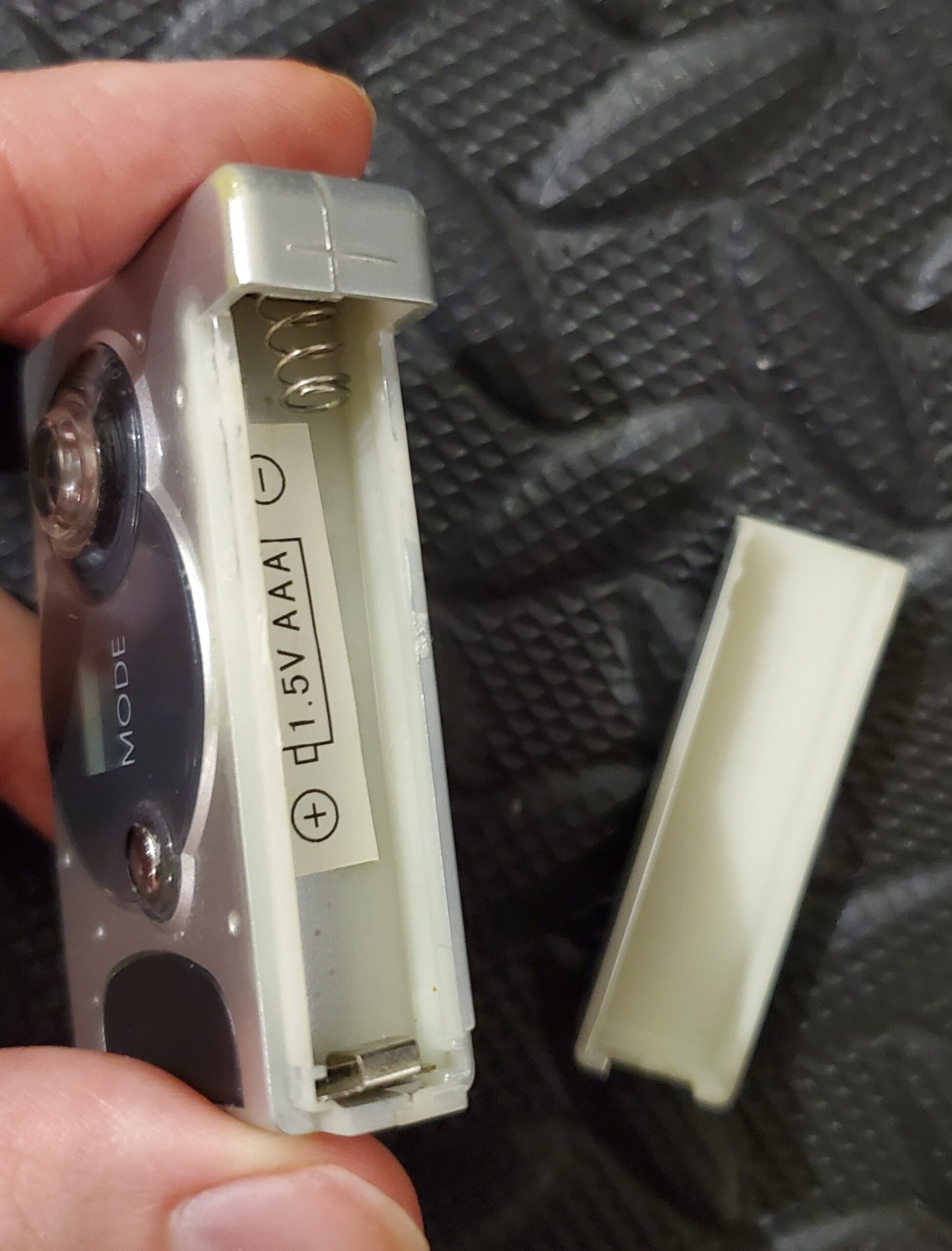
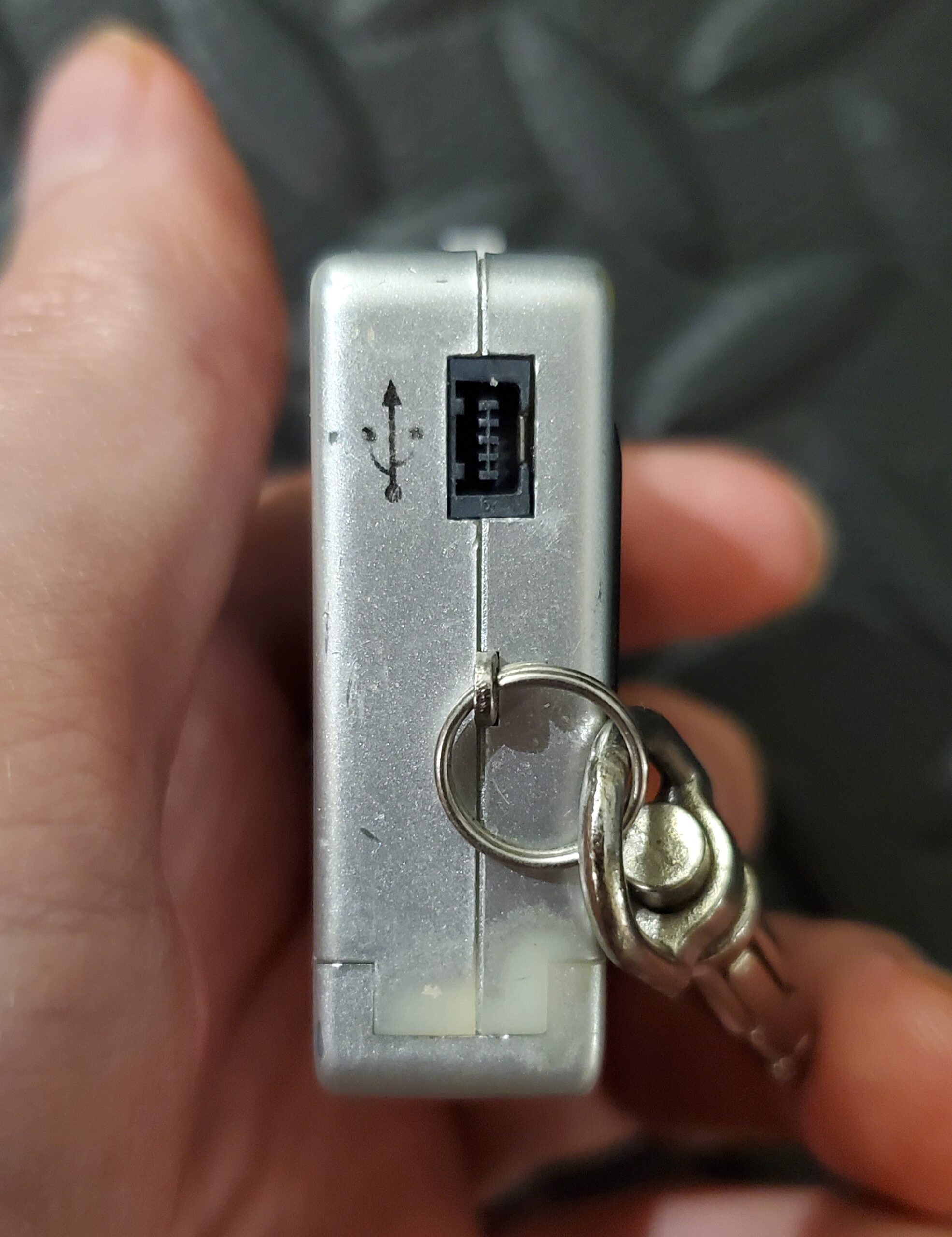
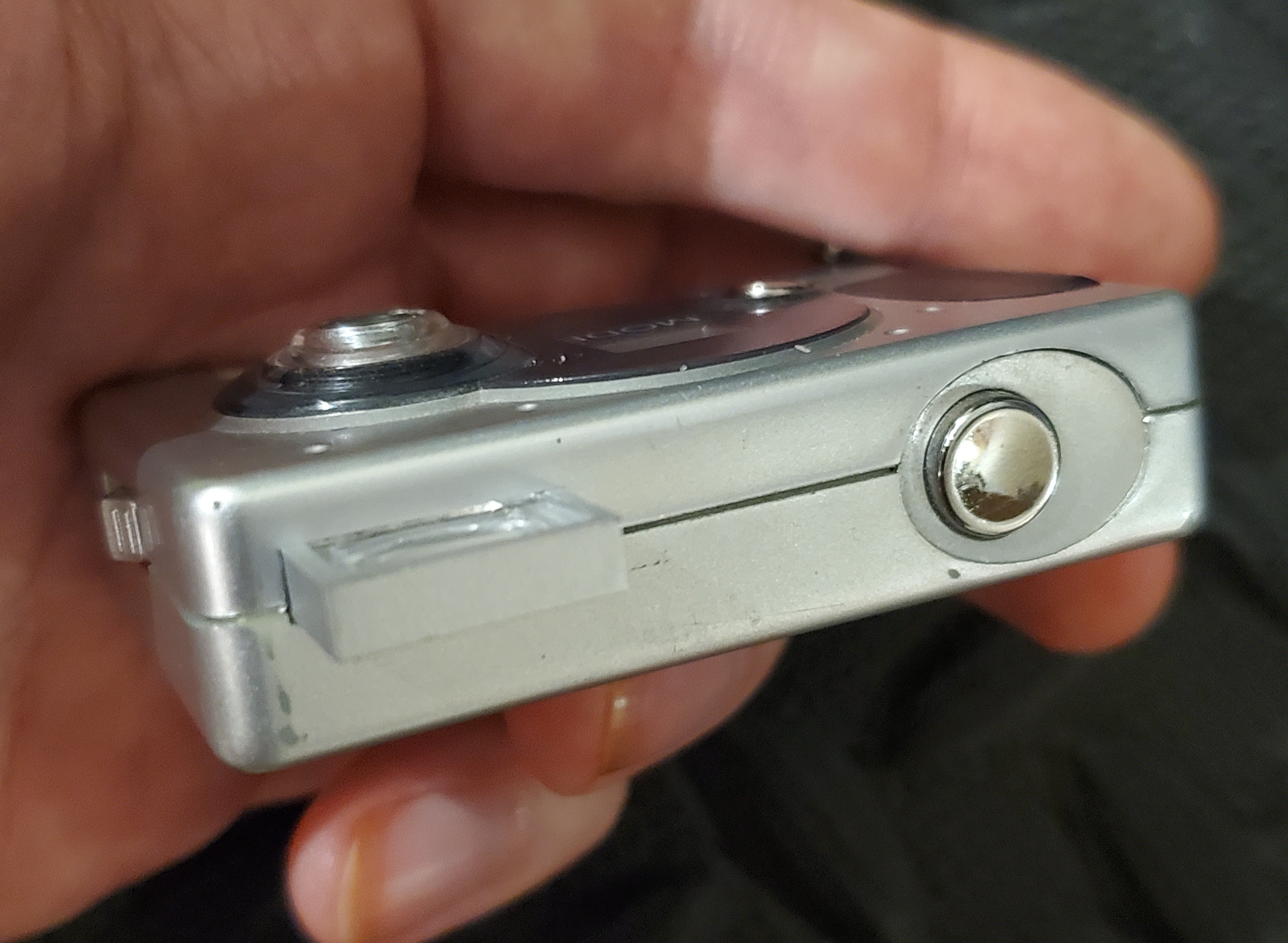
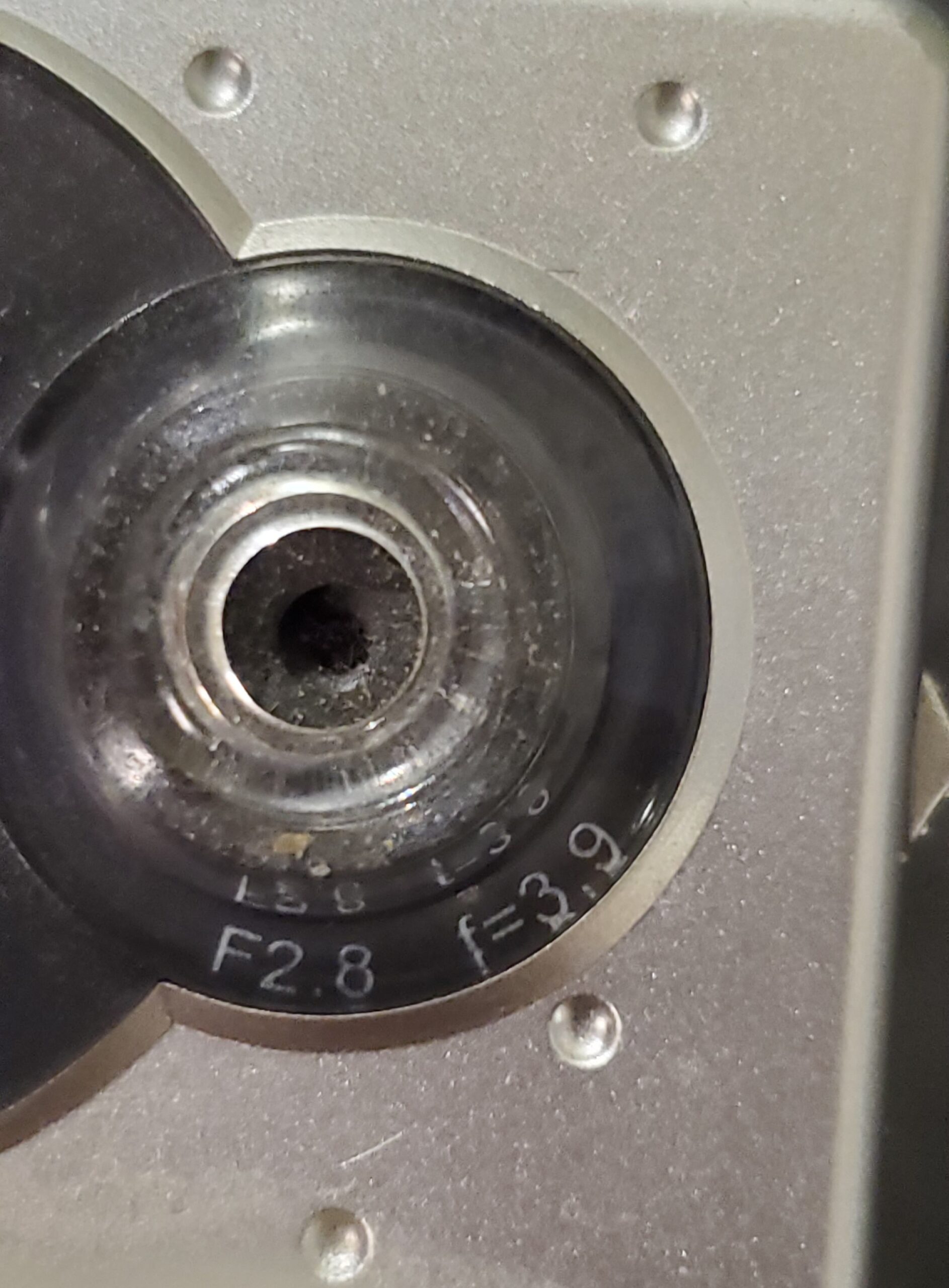
I also had a second Vivitar camera, with a purple/pink front and blue back, that came with a spring-powered belt clip. Unfortunately, this camera was no longer able to power on, even with a fresh battery. I decided to take it apart to test it with my multimeter and see if there were any simple issues I could fix. Unfortunately, these cameras are apparently not held together well, and the case’s own enclosure provided most of the connectivity. As soon as it was open, the pieces were all over, and there is no easy way to put them back together. I would warn you against taking apart these cameras yourself, but I am providing photos of what was inside for your own reference.
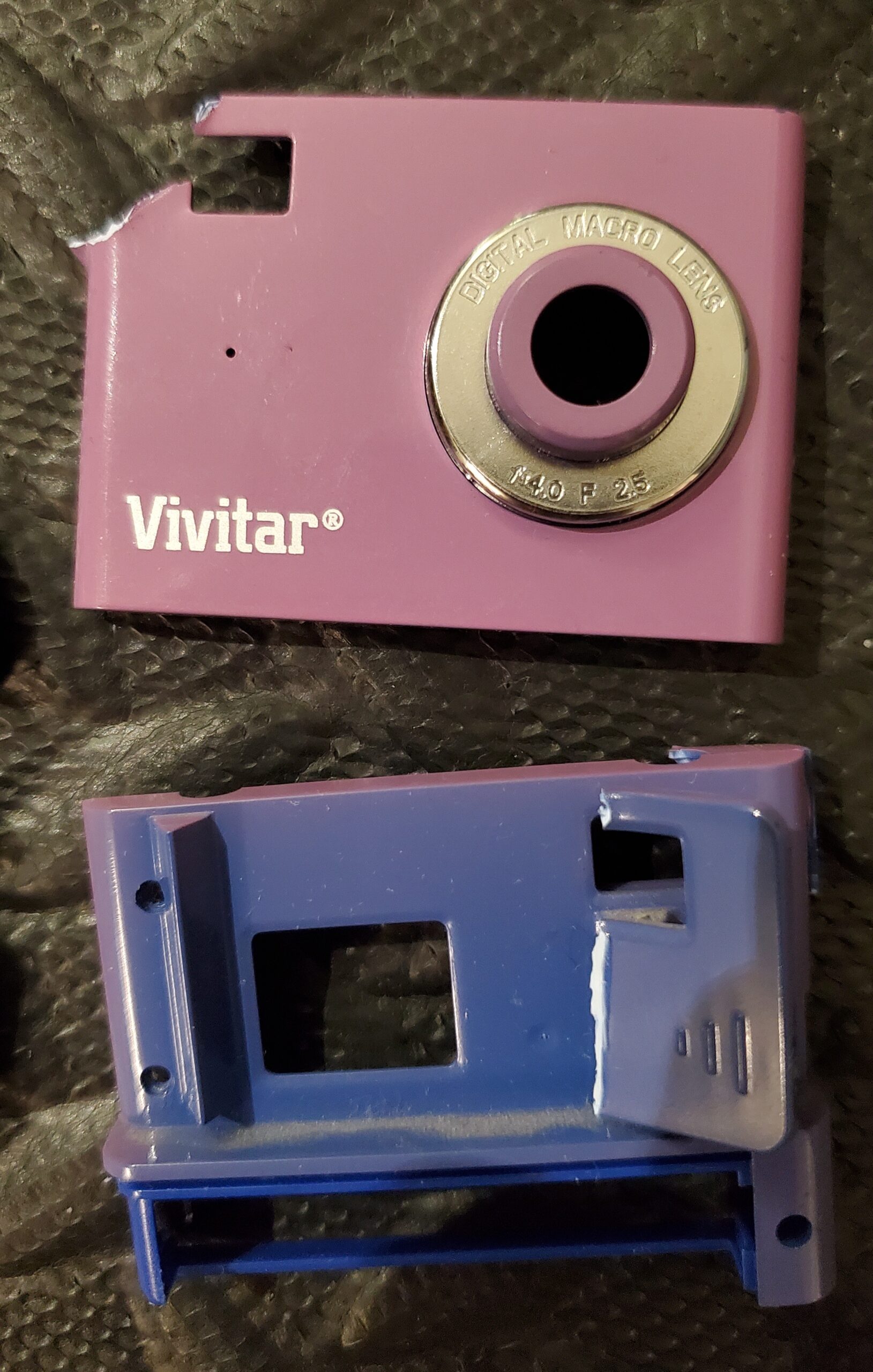
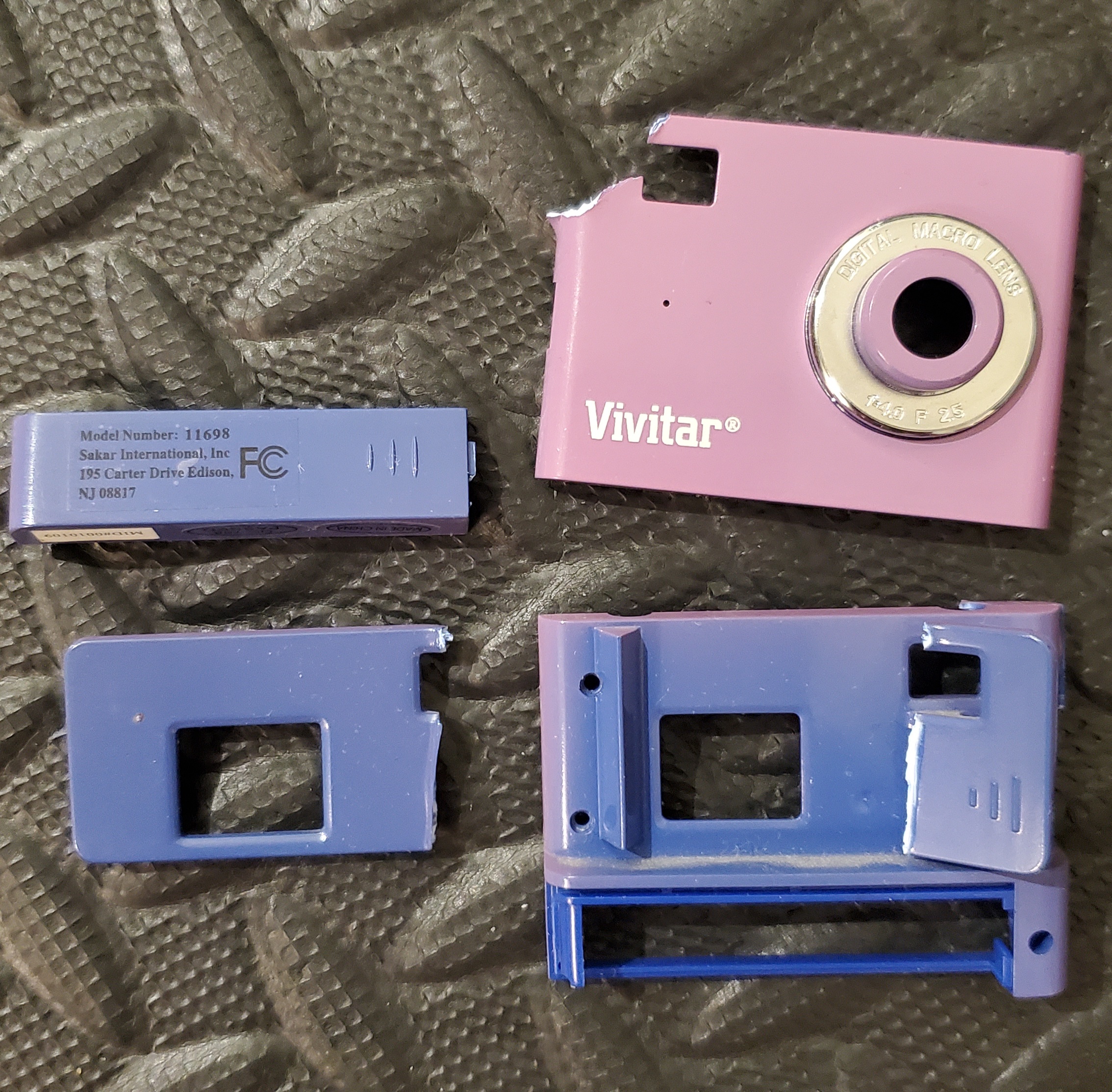
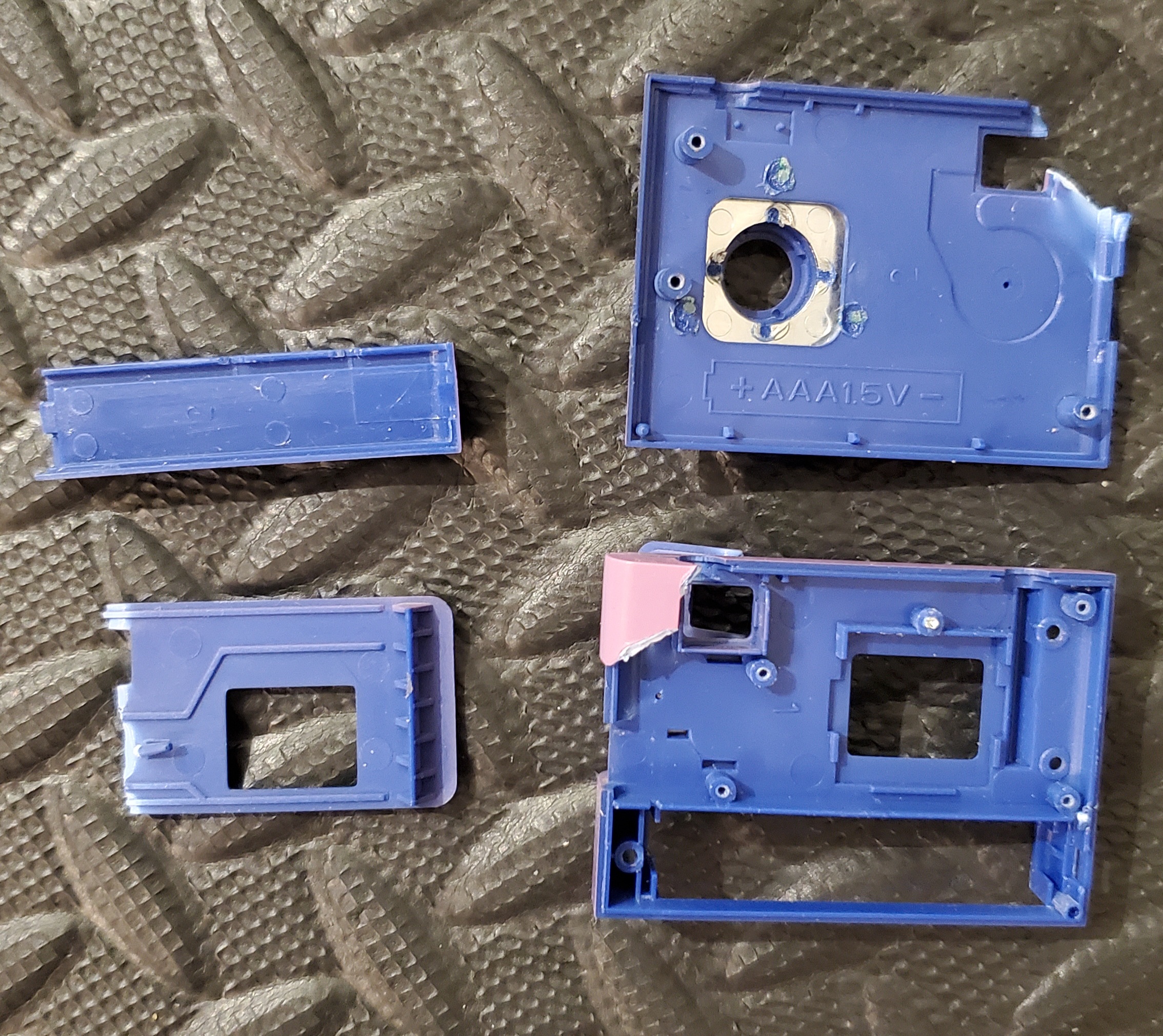
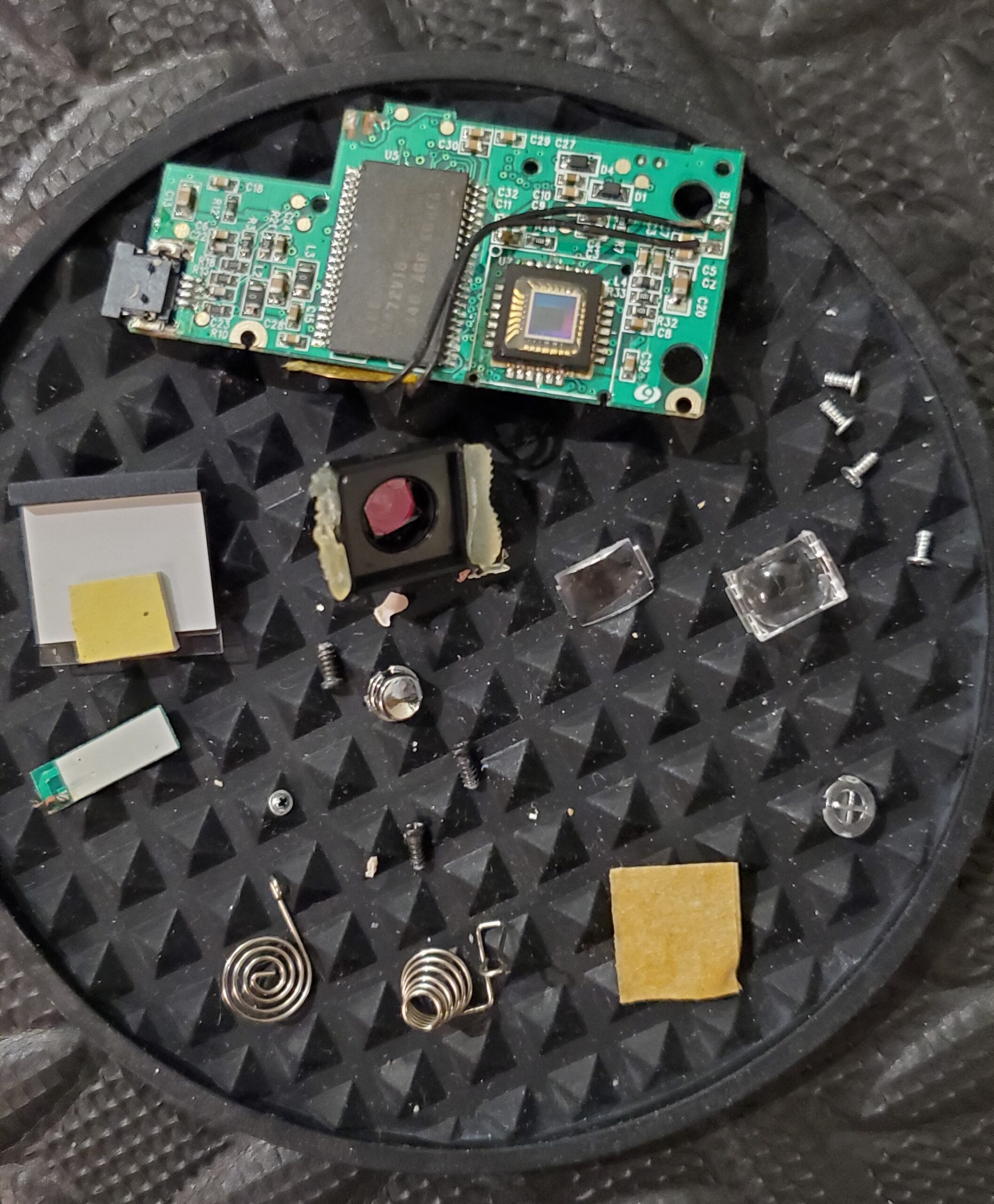
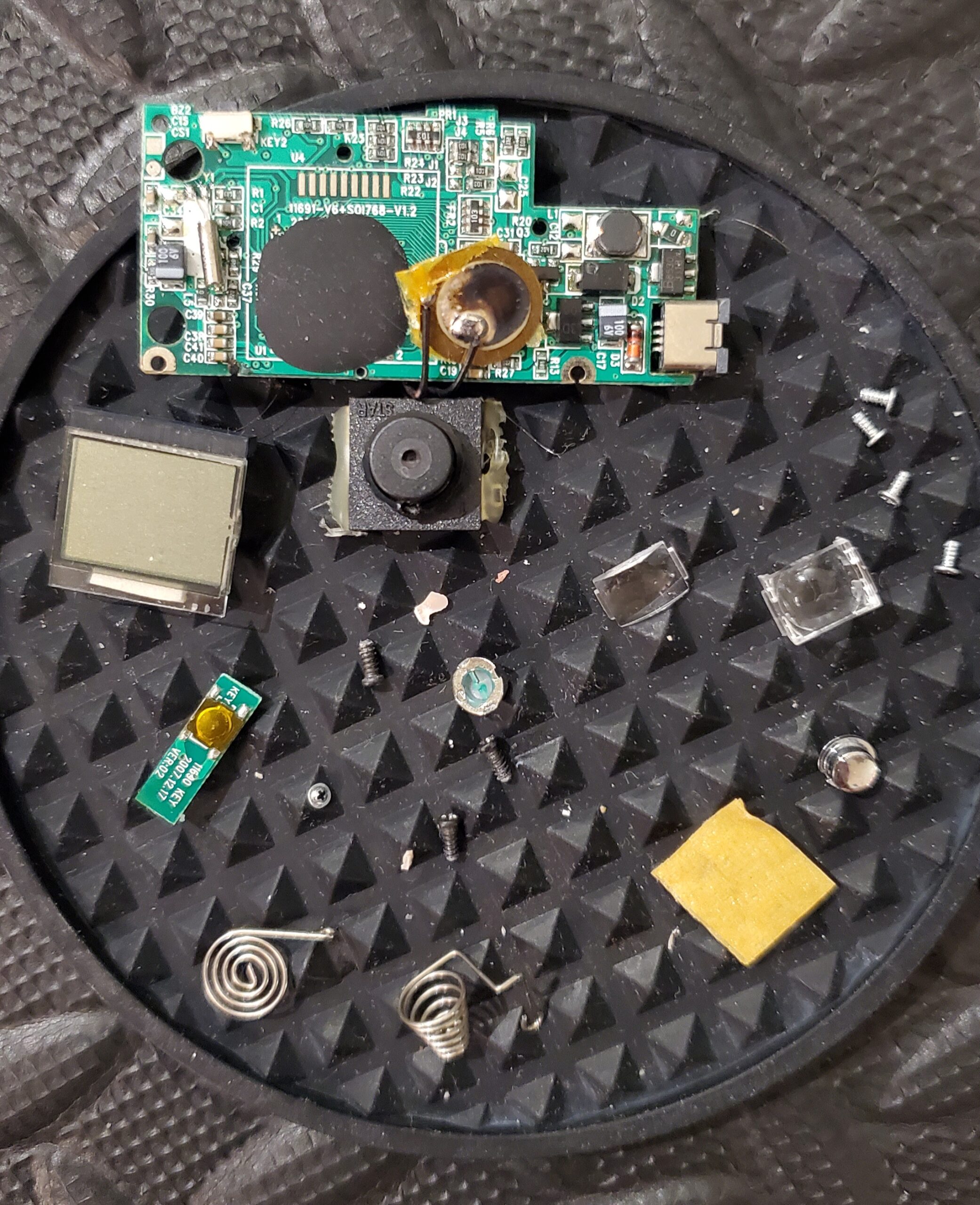
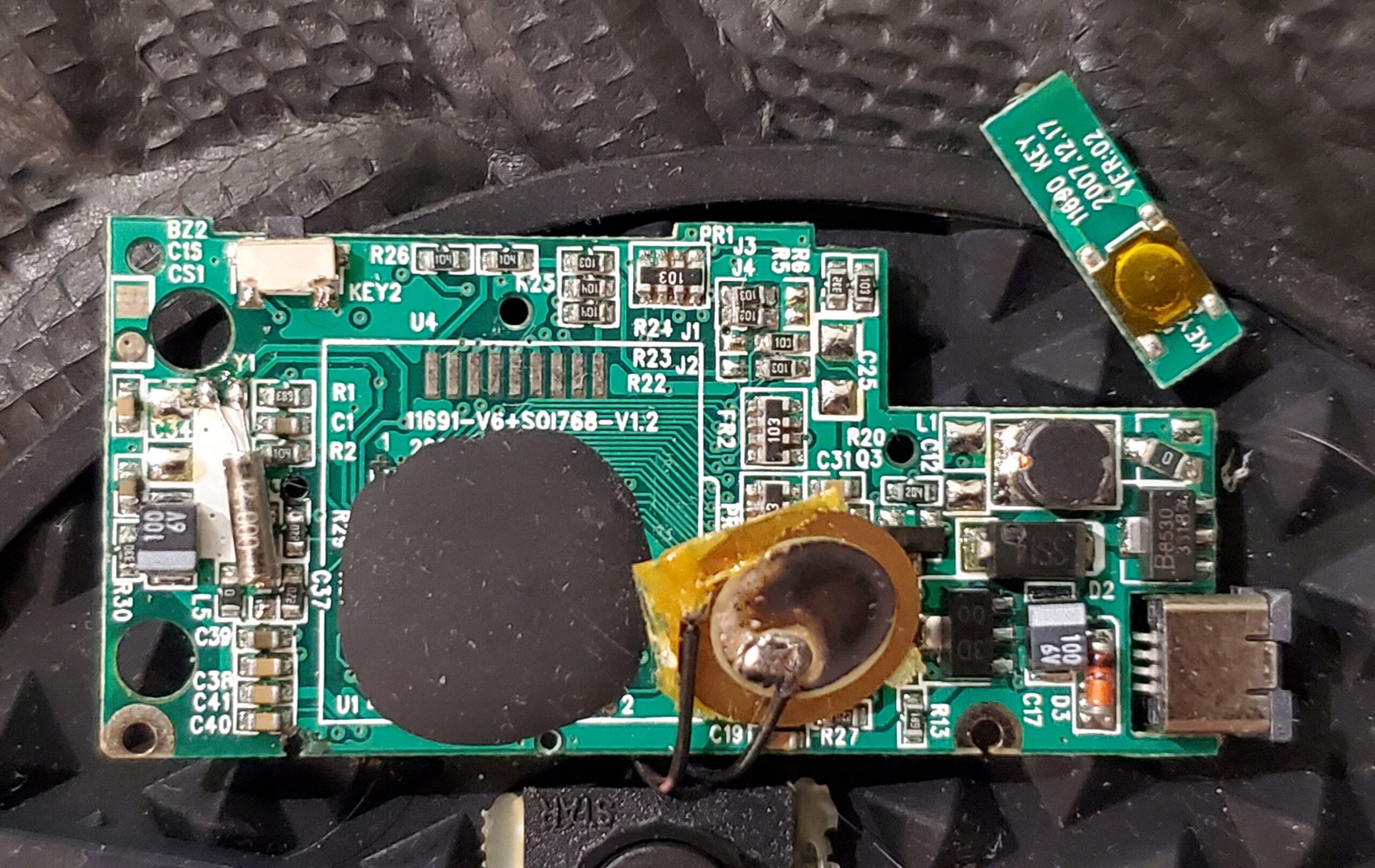
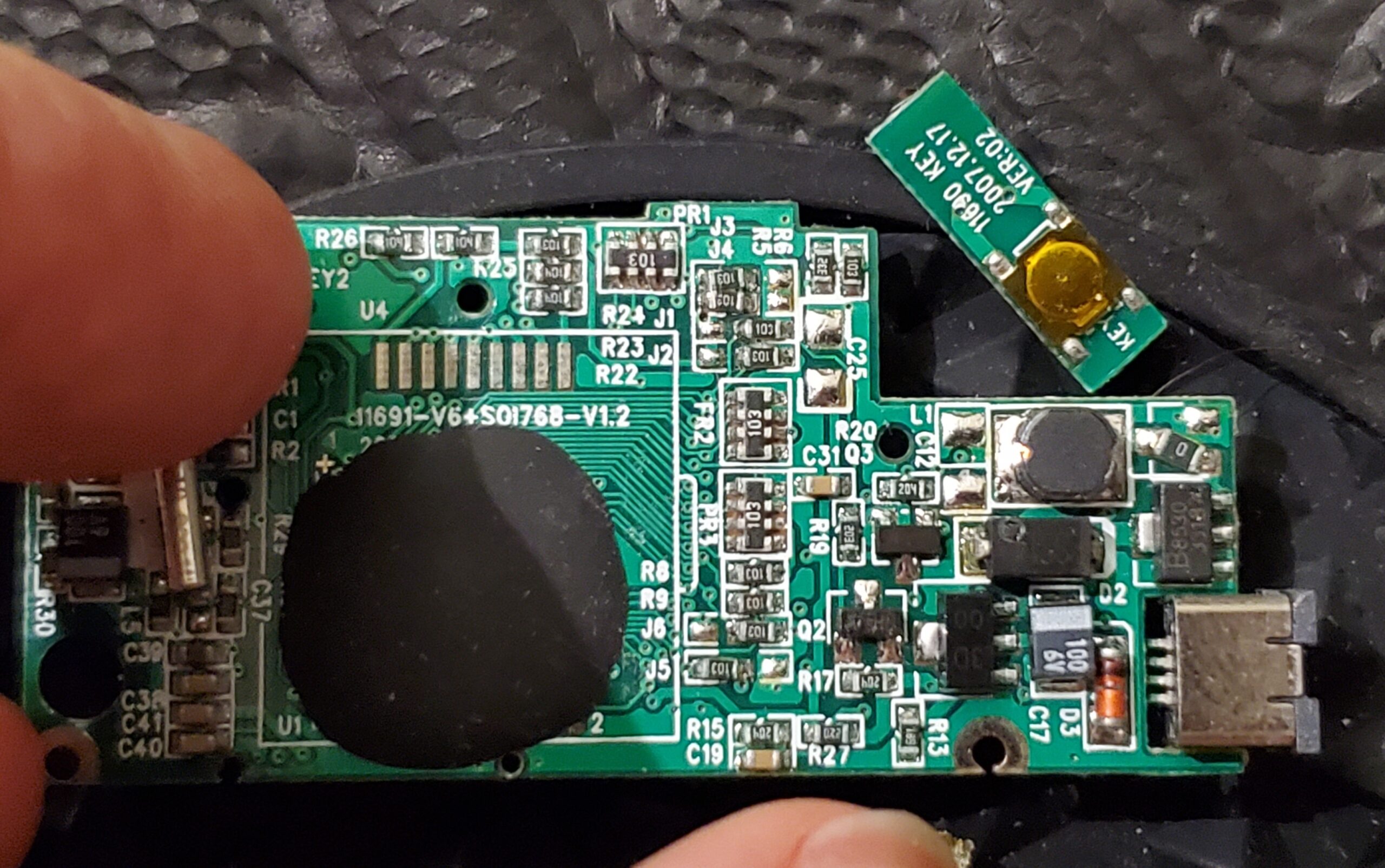
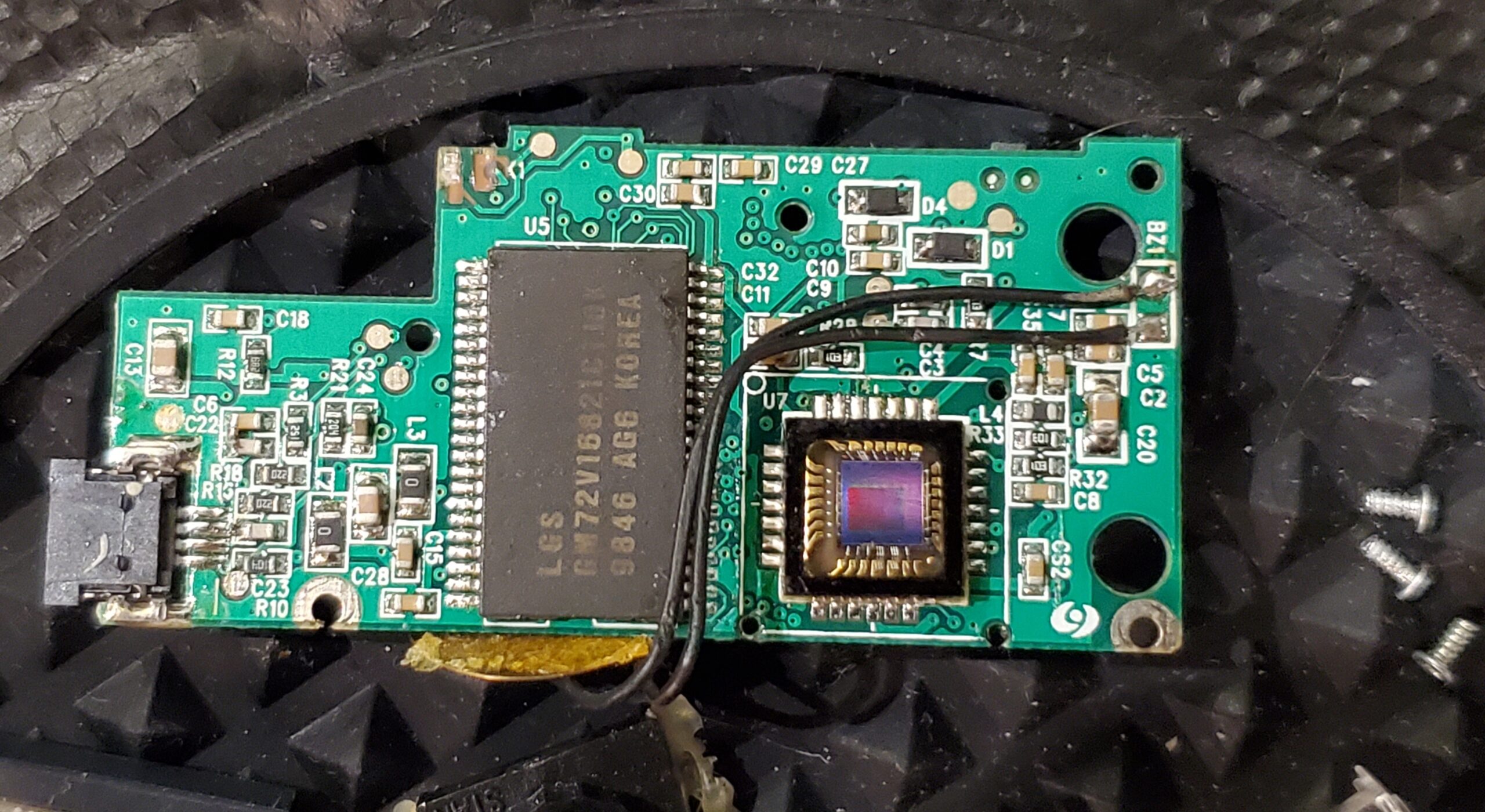
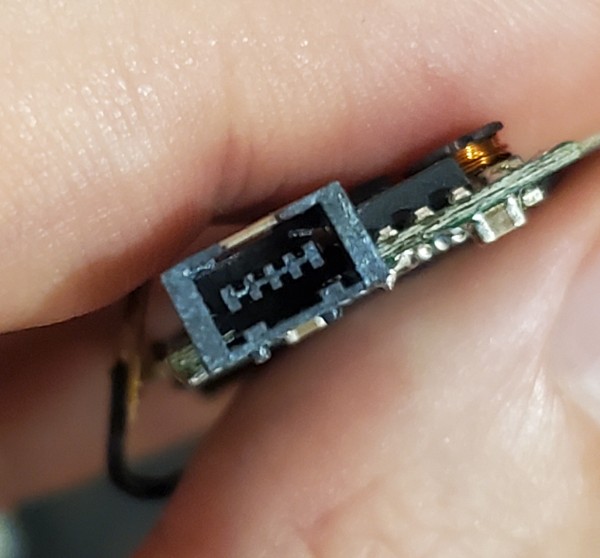
Note that the exterior of this one says “DIGITAL MACRO LENS” and “f=4.0 F 2.5”. The bottom says “Model Number: 11698; Sakar International, Inc; 195 Carter Drive Edison, NJ 08817” along with the FCC logo, a Made in China sticker, a “QC 768 PASSED” sticker, and a “MID#0010109” label. The interior is full of labels for resistors, capacitors, and other circuitry parts, and the chip appears to read, “LGS GM72V168210110K 9846AG6 KOREA” although I could be misreading a couple of those faded numbers.
License, feedback, and contact
MarsCam Modern is free and provided as-is, without warranty. The original application code is distributed under the MIT license; the release ZIP includes LICENSE.txt and THIRD_PARTY.txt for the applicable terms and acknowledgments.
If you’ve successfully recovered photos from another copy of this camera—or if you’ve found a different hardware ID, case design, or firmware behavior—I would be interested in hearing about it. You can email me at ethanjhulbert@gmail.com. A brief message confirming that the program worked on another camera is useful in its own right and just hearing someone else got value out of this would mean the world to me ^_^
I made this program because I used this camera back in 2009-2010 with the original software. You can see the three albums I’ve shot with the Vivitar: Hometown, In Flight, and House Party. Of course, these all used the original software on my old Windows XP computer to import the photos.
If you want to support the work, you can also buy me a coffee. But you don’t have to! I am happy to make the application and documentation freely available for anyone who needs them.